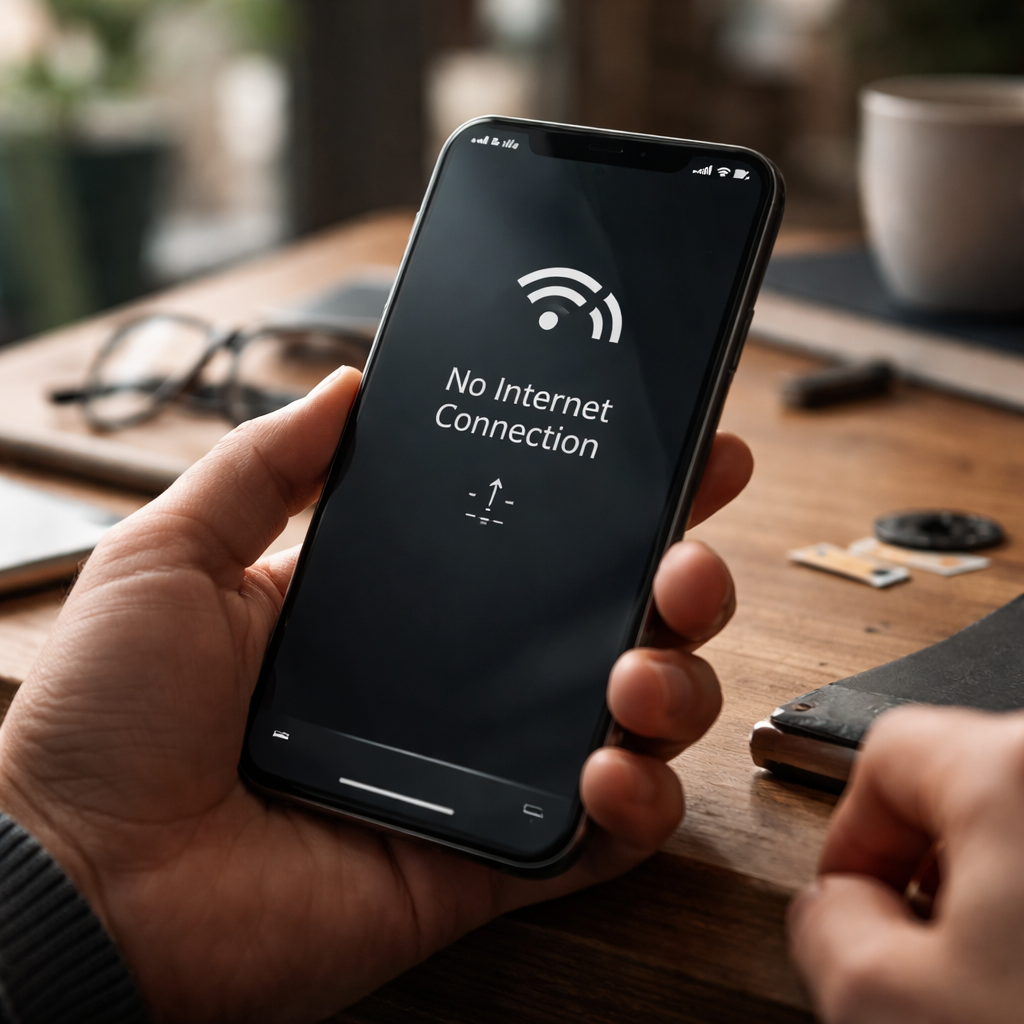
You open an app, tap refresh, and nothing loads — your mobile data not working at the worst possible moment is one of the most frustrating experiences modern smartphone users face. Before you call your carrier or consider replacing your phone, there are several practical steps worth trying first. Most connectivity issues are surprisingly easy to fix once you know where to look.
Why does mobile data stop working in the first place?
Mobile internet connectivity depends on a chain of components working together: your SIM card, network settings, carrier signal, and device software. When one link breaks, data stops flowing. The cause could be as simple as a software glitch or as specific as incorrect APN settings that got reset during an update. Understanding this helps you troubleshoot methodically rather than randomly tapping through menus.
Carrier outages, while less common, do happen. Before diving into device-level fixes, it is worth checking your carrier’s status page or social media channels to rule out a network-side problem in your area.
Start with the basics — they fix more than you think
It sounds almost too obvious, but a significant number of mobile data issues resolve with the simplest actions. Work through these before anything else:
- Toggle airplane mode on, wait five seconds, then turn it off. This forces your phone to re-establish a connection with the nearest cell tower.
- Restart your device completely. A full reboot clears temporary software conflicts that disrupt data services.
- Check that mobile data is actually enabled in your quick settings panel — it occasionally gets switched off accidentally.
- Confirm you have not exceeded your monthly data allowance. Many carriers throttle or cut off data once your plan limit is reached.
- Remove and reinsert your SIM card. A slightly loose or dirty SIM can cause intermittent connectivity problems.
A quick airplane mode toggle resolves roughly 30–40% of reported mobile data issues without any deeper troubleshooting needed.
APN settings: the hidden culprit behind internet not working on phone
Access Point Name (APN) settings tell your phone how to connect to your carrier’s data network. These settings can become incorrect after a software update, a SIM swap, or when switching carriers. If your phone shows signal bars but data simply will not load, this is often the reason.
To check APN settings, go to Settings, then navigate to Mobile Network or Cellular and look for Access Point Names. Each carrier has specific APN values — the correct ones are usually available on your carrier’s official support website. Entering or restoring these values manually often brings data back immediately.
| Carrier | Where to find APN settings |
|---|---|
| AT&T | att.com/support → Device Support → APN Settings |
| T-Mobile | t-mobile.com/support → APN Settings page |
| Verizon | verizon.com/support → APN Configuration |
| Vodafone | vodafone.com/personal/help → Network Settings |
If you are unsure which values to enter, calling your carrier’s support line and asking them to send an automatic configuration SMS is the safest route. Most carriers offer this service at no cost.
Network mode and roaming settings that often get overlooked
Your phone’s preferred network mode — 5G, LTE, 3G — matters more than many people realize. If your device is set to a network type that has poor coverage in your current location, data will either be extremely slow or completely unavailable. Try switching from 5G Auto to LTE only, or from LTE to 3G, to see if a different band provides a stable connection where you are.
Data roaming is another commonly missed setting. When you travel outside your home network coverage area, data roaming must be enabled for your phone to connect through partner networks. Just be aware that roaming charges may apply depending on your plan.
When a network reset is the right move
If none of the above steps restore your connection, resetting network settings is a logical next step. This resets Wi-Fi passwords, Bluetooth pairings, and mobile data configurations back to factory defaults — it does not erase your personal data, photos, or apps.
On Android devices, this option is typically found under Settings → General Management → Reset → Reset Network Settings. On iPhone, it is located at Settings → General → Transfer or Reset iPhone → Reset → Reset Network Settings.
After the reset, your phone will reconnect to cellular networks fresh. You will need to re-enter Wi-Fi passwords, but in many cases mobile data resumes working immediately.
Software updates and their unexpected effect on cellular connectivity
Carrier settings updates are separate from regular operating system updates and are specifically designed to optimize how your phone connects to cellular networks. These small updates occasionally cause temporary data issues, but they can also fix them. Check for any pending carrier or system updates in your device settings.
Conversely, if your data stopped working right after a system update, the update may have reset your APN settings or introduced a software bug. In this case, checking forums for your specific device model and Android or iOS version often surfaces a known fix faster than official support channels.
What to do when nothing else works
At this stage, the issue is likely either hardware-related or account-specific. A physically damaged SIM card, a faulty antenna inside your phone, or a suspended account are situations that cannot be resolved through settings alone.
- Ask your carrier to replace your SIM card — they are free or very low cost, and an old or damaged SIM is a surprisingly common cause of persistent data problems.
- Test your SIM in a different phone. If data works there, the issue is with your device hardware. If it does not, the problem is with the SIM or account.
- Contact your carrier directly to confirm your account is active, your data plan is properly configured, and there are no holds or restrictions on your line.
- As a last resort, a factory reset of your device will rule out deep software corruption — but back up everything beforehand.
Mobile data issues rarely turn out to be as serious as they first seem. Working through the steps methodically — from the simplest toggle to the more involved resets — covers the vast majority of real-world scenarios. The key is patience and a logical approach rather than random changes that make it harder to identify what actually solved the problem.
