You press the button, move the mouse across the desk — and nothing happens on the screen. A wireless mouse not working is one of those frustrating moments that can derail your entire workflow in seconds. Before you reach for a replacement or spend time on the phone with tech support, there are several straightforward fixes worth trying first. Most of the time, the issue is simpler than it looks.
Start with the obvious: battery and power switch
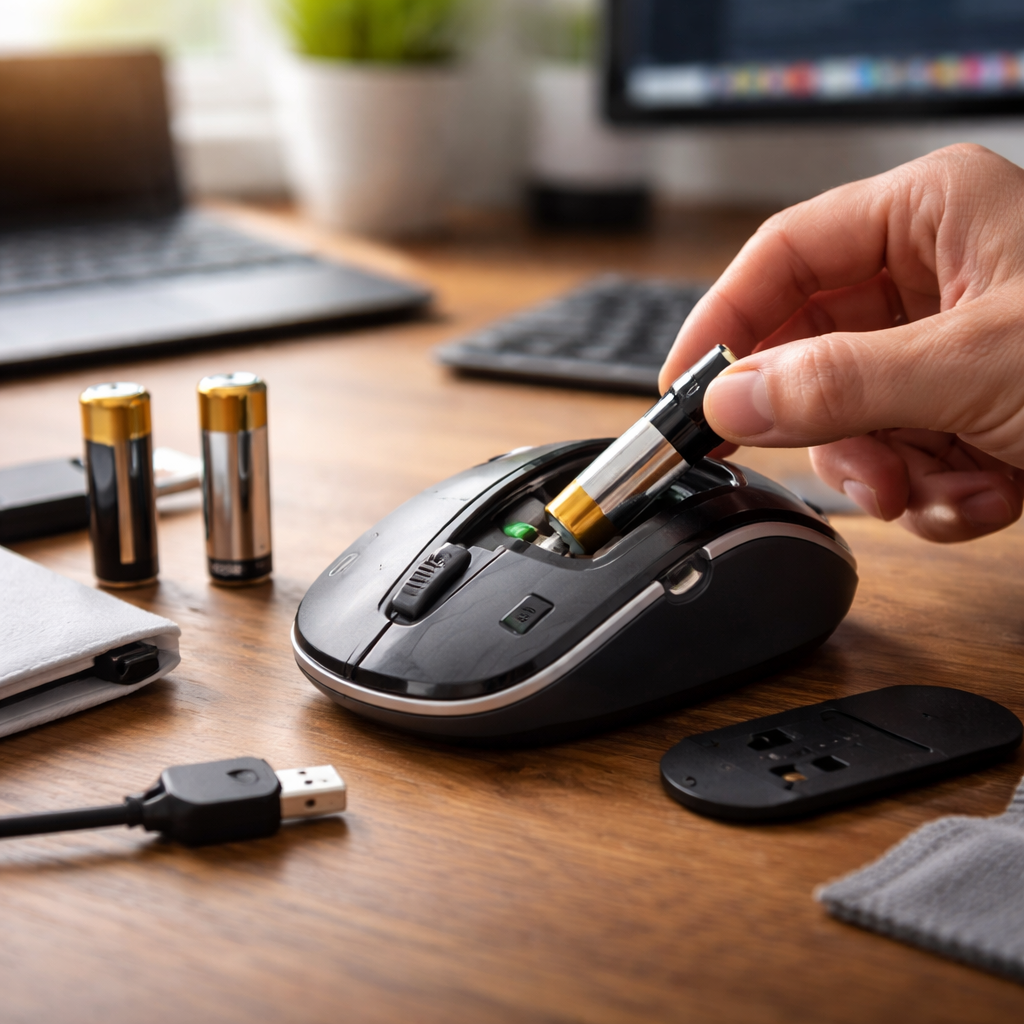
It sounds too simple, but a surprising number of mouse problems trace back to dead or weak batteries. A mouse may appear powered on while actually running on insufficient charge to maintain a stable connection. If your mouse uses AA or AAA batteries, swap them for fresh ones — even if the old ones seem relatively new. Some mice also have a physical power switch on the bottom that gets accidentally flipped. Check that first before anything else.
Rechargeable wireless mice have their own quirks. If yours connects via USB charging cable, try using a different cable or port. Charging contacts can oxidize over time, which interrupts the charging process without any obvious indicator.
The USB receiver deserves more attention than it usually gets
Most wireless mice rely on a small USB dongle — often called a nano receiver — plugged into your computer. This tiny component is easy to overlook, but it’s frequently the source of the problem.
- Unplug the receiver and plug it back into a different USB port
- Avoid USB hubs when possible — connect the receiver directly to the computer
- Try moving the receiver to a port on the back of a desktop tower, away from interference sources
- Check if the receiver is physically damaged or bent
USB ports near other wireless devices — like external hard drives or phone chargers — can cause signal interference. Even Wi-Fi routers and Bluetooth adapters operating on the 2.4 GHz frequency band can disrupt your mouse signal. Relocating the receiver even a few centimeters can make a real difference.
If your mouse came with a USB extender cable in the box, this is the moment to use it. Bringing the receiver closer to the mouse often resolves intermittent connection drops instantly.
Bluetooth mice: pairing issues and forgotten connections
Bluetooth wireless mice operate differently from dongle-based models and come with their own set of quirks. If your Bluetooth mouse has stopped responding, the connection profile saved on your computer may have become corrupted or outdated.
The most reliable fix is to remove the device entirely from your Bluetooth settings and pair it again from scratch. On Windows, go to Settings → Bluetooth & devices, find the mouse, click “Remove device,” then hold the pairing button on the mouse until the LED blinks rapidly and add it as a new device. On macOS, the process follows the same logic through System Settings → Bluetooth.
| Mouse Type | Common Issue | First Fix to Try |
|---|---|---|
| USB dongle (2.4 GHz) | No cursor movement | Replug receiver to another port |
| Bluetooth | Device not found | Re-pair from Bluetooth settings |
| Rechargeable wireless | Mouse unresponsive | Check charging cable and contacts |
| Any wireless | Cursor lagging or jumping | Change USB port, reduce interference |
Driver and software conflicts you might not expect
Operating systems handle input devices through drivers — small software layers that translate hardware signals into actions on screen. These drivers can become outdated, corrupted, or conflict with recent system updates.
On Windows, open Device Manager (search for it in the Start menu), expand the “Mice and other pointing devices” section, right-click your mouse, and select “Update driver.” If the mouse doesn’t appear in the list at all, try clicking “Action → Scan for hardware changes.” Sometimes the fix is even simpler: uninstall the driver entry and restart your computer so Windows reinstalls it automatically.
For mice from manufacturers like Logitech, Razer, or Microsoft, proprietary software such as Logitech Options or Razer Synapse can occasionally interfere with basic functionality. If you have such software installed, try disabling or uninstalling it temporarily to see whether the mouse responds normally without it.
Quick checklist before giving up:
- Replace or recharge the battery
- Toggle the power switch off and on
- Replug the USB receiver to a different port
- Re-pair via Bluetooth settings
- Update or reinstall the mouse driver
- Test the mouse on a different computer
- Clean the optical sensor on the bottom
Surface, sensor, and environmental factors
Wireless mice use optical or laser sensors to detect movement, and these sensors are sensitive to surface type. Highly reflective desks, transparent glass, and certain patterned surfaces confuse the sensor and cause erratic or no movement. If you’re working on a glass table or a glossy surface, switch to a standard mouse pad — even a plain piece of paper is enough to test whether the surface is the culprit.
Dust and debris around the sensor lens can also cause tracking issues. Gently clean the bottom of the mouse with a dry microfiber cloth or a cotton swab. Avoid using liquids near the sensor opening.
When the mouse works on another device but not yours
Testing your mouse on a second computer is one of the most useful diagnostic steps. If it works perfectly elsewhere, the problem almost certainly lies with your computer’s settings, drivers, or USB ports — not the mouse hardware itself. In that case, focus your troubleshooting on the software side: update your operating system, reinstall drivers, and check for conflicting applications.
If the mouse fails on multiple devices, the hardware itself may be faulty — particularly the internal receiver chip or battery contacts. At that point, contacting the manufacturer for a warranty replacement or considering a new mouse becomes a reasonable next step.
Getting your setup back on track
Most wireless mouse problems have a fix that takes under five minutes once you know where to look. The combination of a fresh battery, a repositioned receiver, and a clean driver installation resolves the vast majority of cases that seem complicated at first glance. Work through the steps methodically rather than jumping between them randomly — that approach saves time and removes guesswork from the process. Once your mouse is back in action, it’s worth noting what fixed it, so if the issue returns, you know exactly where to start.
