You plug in a flash drive, connect a mouse, or try to charge your phone — and nothing happens. A USB port not working is one of those problems that feels minor until it completely disrupts your workflow. The good news: in most cases, this issue is fixable without visiting a repair shop or spending a dime.
Start with the obvious — but don’t skip it
Before diving into drivers and system settings, it’s worth ruling out the simplest causes. A loose connection, a damaged cable, or a faulty peripheral device can mimic a dead port perfectly. Try a different USB cable and test the same device on another port or computer. If the device works elsewhere, the problem is almost certainly with the port itself — not the device.
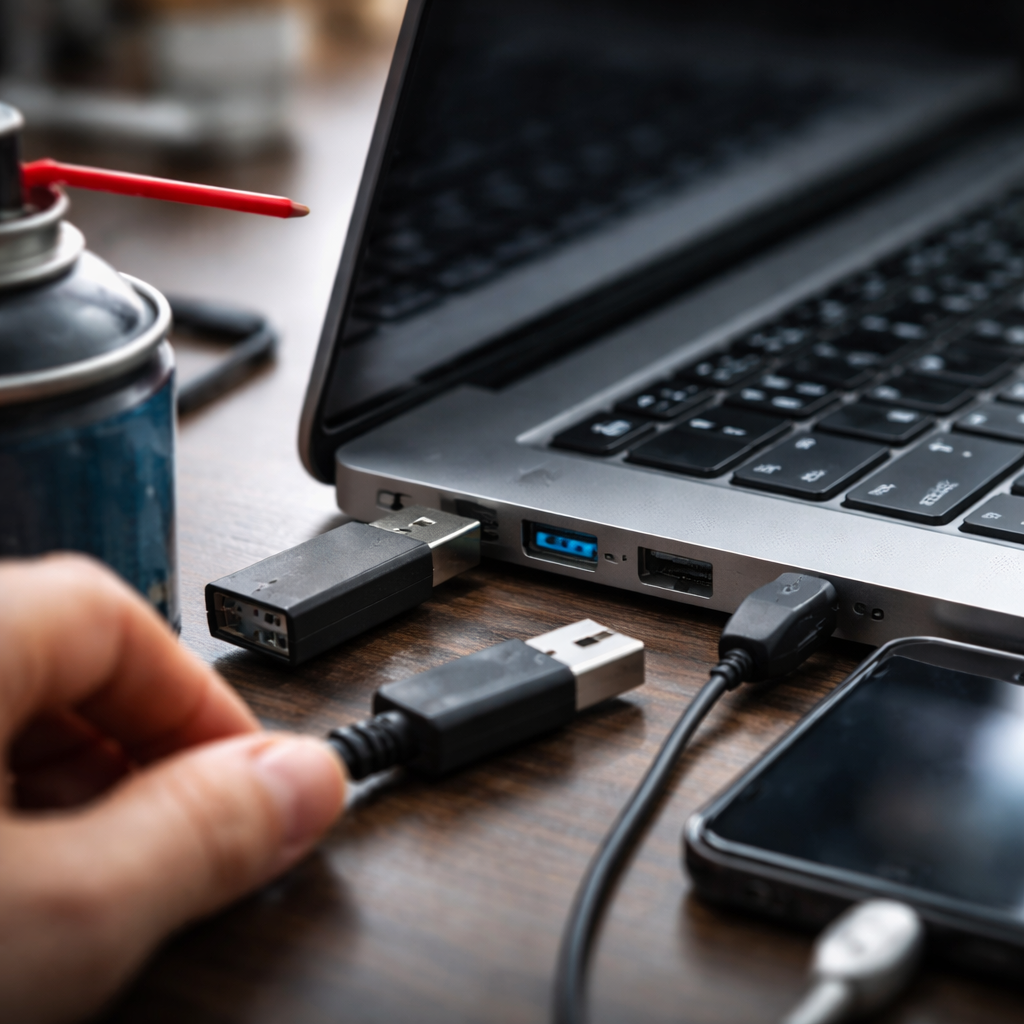
Also check for physical damage: bent pins inside the port, debris, or dust buildup can block proper contact. A can of compressed air can clear out lint and particles that accumulate over time, especially on laptops carried in bags.
Restart first, troubleshoot second
It sounds almost too simple, but a full system restart resolves a surprising number of USB connectivity issues. Windows and macOS sometimes lose track of connected hardware, especially after sleep mode or rapid device swapping. A reboot resets the USB controller and forces the operating system to re-detect connected devices from scratch.
If your port stopped working after waking the computer from sleep, there’s a strong chance it’s a power management issue — not a hardware failure.
Power management is a hidden culprit
Windows has a feature called USB selective suspend, which cuts power to USB ports to save battery. On laptops especially, this setting can cause ports to appear dead even when they’re physically fine. Here’s how to disable it:
- Open Control Panel and go to Power Options
- Click “Change plan settings” next to your active plan
- Select “Change advanced power settings”
- Find USB settings → USB selective suspend setting
- Set it to Disabled for both On battery and Plugged in
- Apply and restart
On Mac, a similar reset can be achieved by resetting the System Management Controller (SMC), which governs USB power delivery and hardware communication. The exact steps differ depending on whether your Mac uses Apple Silicon or an Intel processor.
Device Manager: where most Windows fixes actually happen
If the port still isn’t responding, Device Manager is the next stop on Windows. Open it by right-clicking the Start button and selecting “Device Manager.” Look under the “Universal Serial Bus controllers” section — if you see any entries with a yellow warning triangle, that’s your signal.
Right-click the flagged device and choose “Update driver.” If updating doesn’t help, try “Uninstall device” — then restart the computer. Windows will automatically reinstall the driver on boot, often resolving conflicts caused by corrupted or outdated driver files.
| Symptom | Likely cause | Recommended fix |
|---|---|---|
| Port worked, now completely dead | Driver corruption or power issue | Uninstall/reinstall USB driver |
| Device recognized but not functioning | Incorrect or missing driver for the device | Update device-specific driver |
| Port works intermittently | Loose internal connection or hardware wear | Check hardware or visit a technician |
| All ports stopped at once | USB controller failure or BIOS issue | Reset BIOS settings or seek repair |
When it’s a BIOS or firmware issue
In rare cases, USB ports are disabled at the BIOS level — either intentionally (on managed corporate devices) or after a failed firmware update. To check this, restart your computer and enter BIOS setup (usually by pressing F2, Delete, or F10 during boot, depending on your motherboard manufacturer). Look for USB configuration settings and make sure the ports are enabled.
If your BIOS is outdated, a firmware update from the manufacturer’s website can sometimes resolve compatibility issues with newer USB devices or fix known bugs affecting port detection.
macOS-specific steps worth knowing
On Mac, non-responsive USB ports often respond to an SMC reset or, on newer Apple Silicon Macs, simply shutting down completely for 30 seconds. Another useful tool is System Information (found via About This Mac → System Report), where you can see exactly which USB devices the system detects and which ports are active.
If a USB hub is involved, disconnect it and connect the device directly to the Mac. Hubs — especially unpowered ones — can fail to deliver adequate current to demanding devices like external hard drives, causing them to appear unresponsive.
Hardware damage: how to tell and what to do
If software fixes yield no results and the port remains unresponsive, physical damage is likely. Common signs include:
- The port feels loose or wobbly when a cable is inserted
- Visible burn marks or discoloration around the port
- A faint burning smell when connecting a device
- The connector visibly moves or shifts inside the housing
In these cases, a repair technician can often solder or replace the port for a reasonable cost — far less than a full motherboard replacement. On desktops, adding a PCIe USB expansion card is a practical and affordable workaround if the built-in ports are damaged beyond repair.
- Tested a different cable and device ✓
- Restarted the computer ✓
- Disabled USB selective suspend (Windows) ✓
- Reinstalled USB drivers via Device Manager ✓
- Checked BIOS for disabled ports ✓
- Reset SMC (Mac) ✓
- Inspected the port for visible damage ✓
Getting your ports working again — and keeping them that way
Most USB port failures follow predictable patterns, and most of them are fixable with the steps above. Software-related issues — driver conflicts, power management settings, OS glitches — account for the majority of cases, and they’re entirely within your control to resolve. Physical damage is less common but easy to identify once you know what to look for.
To avoid future problems, avoid yanking cables out at an angle, don’t force connectors that don’t fit, and use a powered USB hub for devices that draw significant current. Treating ports with a little care goes a long way — these small connectors carry a lot of your daily digital life through them.
