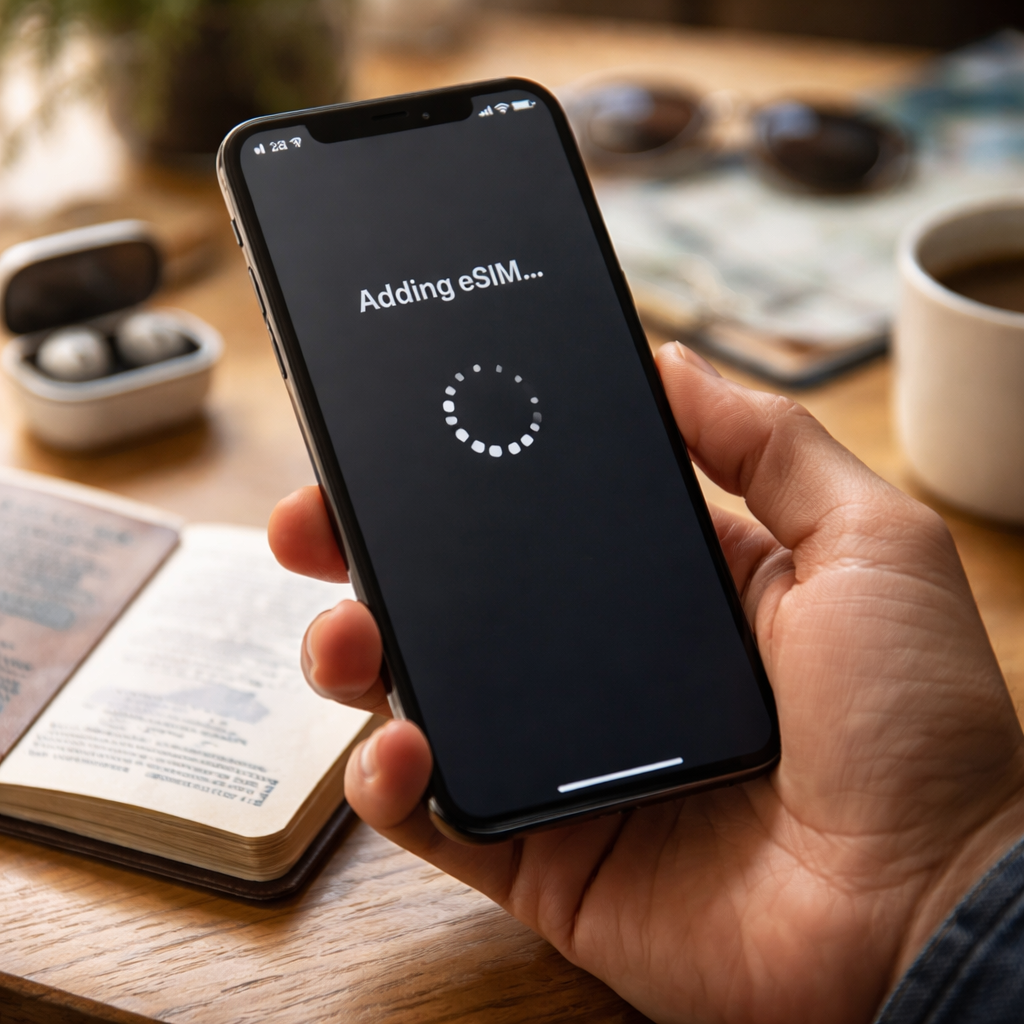
You scan your phone settings, tap “Add eSIM,” wait… and nothing happens. If esim activation not working is the exact wall you’ve just hit, you’re far from alone — this is one of the most common pain points for travelers, remote workers, and anyone switching to a digital SIM for the first time. The frustrating part? The fix is often simpler than it seems, but only if you know where to look.
Why eSIM activation fails in the first place
Unlike a physical SIM card you just pop in and go, eSIM depends on a chain of steps: the carrier sends a profile, your device downloads it, and the network authenticates it. Any break in that chain — on your end, the carrier’s end, or somewhere in between — can stop the whole process cold.
The most overlooked culprit is a poor or unstable internet connection at the moment of activation. eSIM profiles are downloaded over Wi-Fi or mobile data, and if the signal drops mid-transfer, the profile may fail silently without giving you a clear error message.
The most common reasons your eSIM won’t activate
Before diving into fixes, it helps to understand what’s actually going wrong. The issues tend to cluster into a few categories:
- Device compatibility — not every phone supports every carrier’s eSIM profile format
- Device lock — if your phone is locked to another carrier, it will reject a new eSIM profile
- Expired or already-used QR code — most eSIM QR codes are single-use and have a validity window
- Account verification pending — some carriers require ID checks before the profile goes live
- Incorrect APN settings — even after a successful install, the data connection may not work without manual configuration
- Software bugs — outdated iOS or Android versions can interfere with eSIM management
Step-by-step troubleshooting that actually works
Start with the basics before contacting support. Most activation problems are resolved at the device level.
Check your internet connection
Connect to a stable Wi-Fi network — not a public hotspot if you can avoid it. Home or hotel Wi-Fi is more reliable for this process. Disable VPN if it’s running, as it can interfere with carrier server communication.
Confirm your device is unlocked
Go to your phone settings and look for “Network” or “Carrier” information. On iPhones, Settings → General → About will show your carrier lock status. If it reads “No SIM restrictions,” you’re clear. Android paths vary by manufacturer, but the carrier lock status is usually found under “About phone” or “SIM card status.”
Restart the activation process
Remove the eSIM profile if it was partially installed, then restart your device. Do not try to scan the QR code again yet — if it’s already been scanned, it may be marked as used. Contact your carrier to request a fresh code.
Update your operating system
Both Apple and Android manufacturers frequently patch eSIM-related bugs in system updates. Check for available updates and install them before attempting activation again.
If you’ve gone through all the basic steps and the eSIM still won’t activate, the issue is almost certainly on the carrier side — and a support call will resolve it faster than any workaround you find online.
Device-specific notes worth knowing
| Device type | Common issue | Quick fix |
|---|---|---|
| iPhone (recent models) | Profile download stalls | Reset network settings, retry on Wi-Fi |
| Samsung Galaxy | eSIM option missing | Check if model supports eSIM in your region |
| Google Pixel | Activation loop | Clear eSIM manager cache, re-download profile |
| Dual SIM Android | Wrong slot selected | Manually set eSIM as preferred data SIM |
Regional hardware variants are a real issue with Android phones in particular. The same model sold in different markets can have different modem configurations, and some versions simply don’t support eSIM even if the specs page implies otherwise.
When the problem is APN settings
A successfully installed eSIM that still shows no data connection is a classic sign of an APN mismatch. APN stands for Access Point Name — it’s the gateway setting your phone uses to connect to mobile data.
Most carriers push APN settings automatically when the profile installs, but this doesn’t always happen reliably, especially with travel eSIMs or smaller regional providers. You’ll need to enter these manually:
- On iPhone: Settings → Cellular → Cellular Data Network → APN
- On Android: Settings → Network → Mobile Network → Access Point Names → Add new APN
The correct APN values are always published on your carrier’s website or in your activation email. Don’t guess — use only the official values provided.
A practical tip before you travel
If you’re setting up an eSIM for international travel, activate it before you leave home. Trying to troubleshoot a failed eSIM installation while standing in a foreign airport with no local data and no local SIM is an experience worth avoiding entirely.
Also worth noting: some carriers allow you to install the eSIM profile in advance but keep it in a “standby” state until you manually switch it on. This is normal behavior and not an error. Check your carrier’s documentation to understand whether this applies to your plan.
What to tell carrier support when you call
If you’ve exhausted the self-service options, calling support is the right move — but going in prepared saves a lot of back-and-forth. Have the following ready:
- Your order confirmation number or activation code
- Your device model and exact software version
- A description of what happens when you attempt activation (error message, blank screen, timeout)
- Whether the QR code has been scanned before and how many times
Armed with this information, a carrier agent can quickly check whether the profile was correctly provisioned on their end, reset it if necessary, and issue a new activation link. Most issues at this stage are resolved within a single support session.
Getting connected is closer than it feels right now
eSIM technology is genuinely convenient once it’s working — no physical cards, instant switching, easy international plans. The activation hiccups that come with initial setup are real, but they’re almost always solvable. Whether the fix is a simple restart, a network settings reset, or a quick call to your carrier, you’re not stuck permanently. Follow the steps methodically, and you’ll be connected before long.
