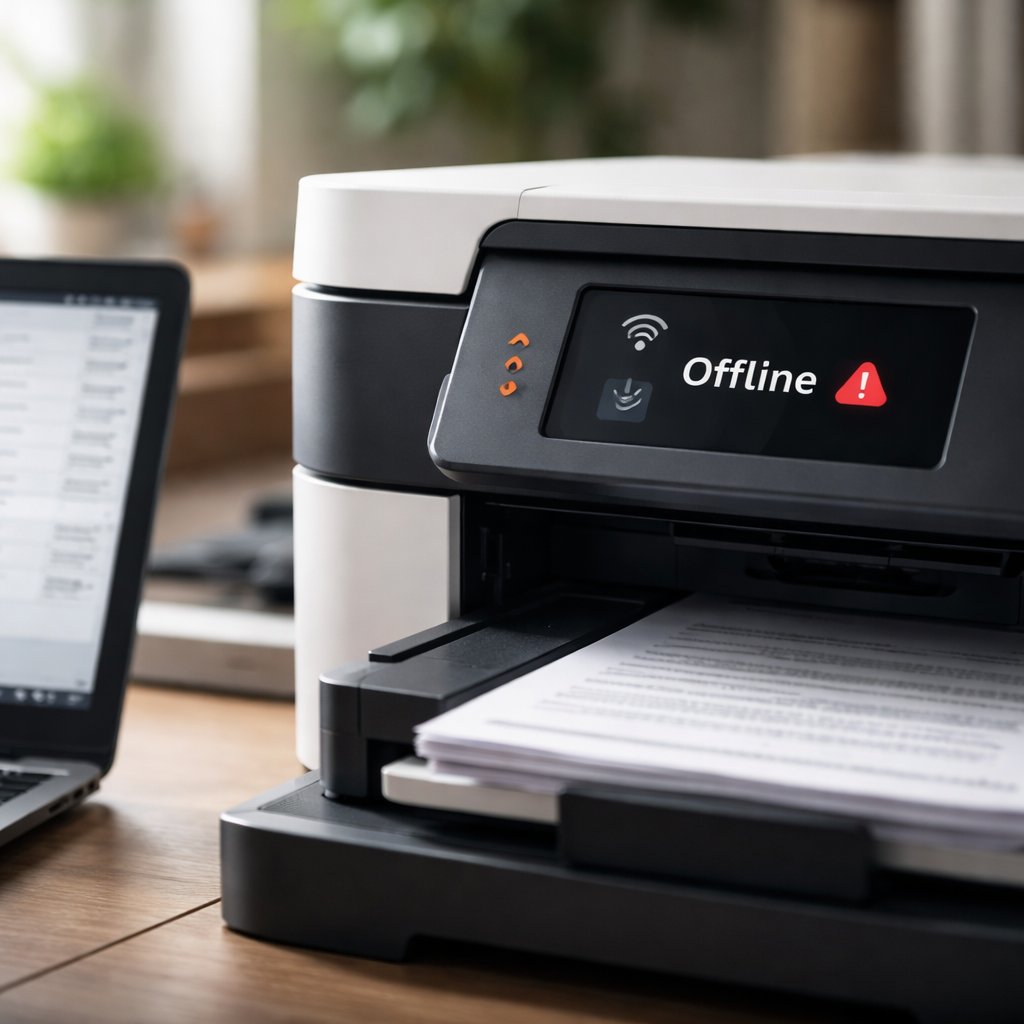
You click “Print,” the document sits in the queue, and nothing happens — your printer offline and not working situation is one of the most frustrating tech problems people face at home or in the office. The annoying part? It often has nothing to do with hardware failure. In most cases, the fix takes under ten minutes once you know where to look.
Why does your printer show as offline in the first place?
The “offline” status in Windows or macOS doesn’t always mean your printer is physically disconnected. It usually means the operating system has lost communication with the device — whether through a dropped USB connection, a Wi-Fi hiccup, a stuck print queue, or a misconfigured default printer setting. Understanding this distinction matters because it changes where you start troubleshooting.
Modern printers — especially wireless models — rely on a steady handshake between the device and your computer. If that handshake gets interrupted, the system marks the printer offline and holds all jobs in a frozen queue until you manually clear it.
Start with the basics before diving into settings
It sounds obvious, but a surprising number of printer issues are resolved by checking the physical setup first. Before opening any settings panel, run through this quick checklist:
- Make sure the printer is powered on and the display (if it has one) shows a ready state
- Check that the USB cable is firmly connected at both ends, or that the printer is connected to the correct Wi-Fi network
- Restart both the printer and your computer — not just the printer alone
- Confirm the printer has paper and ink or toner, as low supplies can sometimes trigger an offline flag on certain models
If everything looks fine physically and the printer is still not responding, it’s time to move into the software side of things.
Clearing the print queue and resetting the spooler
A stuck print job is one of the most common reasons a printer stops responding. When a corrupted or oversized document gets lodged in the queue, it blocks every job that comes after it — and the printer just waits, doing nothing.
On Windows, you can fix this by restarting the Print Spooler service. Here’s how:
- Press Win + R, type
services.msc, and hit Enter - Scroll down to “Print Spooler,” right-click it, and choose “Stop”
- Navigate to
C:\Windows\System32\spool\PRINTERSand delete all files inside the folder (not the folder itself) - Go back to Services, right-click Print Spooler again, and select “Start”
After restarting the spooler, head to your printer settings and try sending a test page. In most cases, this alone brings the printer back online.
On macOS, open System Settings → Printers & Scanners, right-click your printer, and select “Reset printing system.” This clears all stuck jobs and resets the printer connection without deleting the driver.
The “Use Printer Offline” setting that trips everyone up
Windows has a hidden toggle called “Use Printer Offline” that, once accidentally enabled, makes the printer appear offline regardless of its actual status. This setting is easy to switch on by mistake and equally easy to miss.
To check it: go to Control Panel → Devices and Printers → right-click your printer → See what’s printing → click “Printer” in the menu bar. If “Use Printer Offline” has a checkmark next to it, click it to disable the option. Your printer should come back online immediately.
Wireless printer not connecting: what to check
Network printers have their own set of quirks. If your printer connects over Wi-Fi and keeps dropping offline, the issue is often related to IP address changes or signal instability rather than the printer itself.
| Problem | Likely cause | Fix |
|---|---|---|
| Printer offline after router restart | IP address changed by DHCP | Assign a static IP to the printer in router settings |
| Printer offline intermittently | Weak Wi-Fi signal | Move printer closer to router or use a network extender |
| Printer not found on network | Different Wi-Fi band (2.4 vs 5 GHz) | Connect both devices to the same band |
| Print jobs sent but not printed | Firewall blocking printer port | Allow printer ports in firewall settings |
Assigning a static IP address to your printer is a long-term fix that prevents the offline issue from recurring every time your router assigns a new address. Most home routers allow this through the DHCP reservation section in their admin panel.
Driver issues and when reinstalling actually helps
Outdated or corrupted printer drivers are another frequent culprit behind persistent offline errors. This is especially common after a major operating system update, which can break driver compatibility without warning.
To reinstall the driver cleanly on Windows: go to Device Manager → find your printer → right-click and uninstall the device, checking the box to remove the driver software. Then visit the printer manufacturer’s website, download the latest driver for your specific model, and run a fresh installation.
Always download drivers directly from the manufacturer’s official site — brands like HP, Canon, Epson, and Brother all maintain dedicated support pages with model-specific software.
Built-in troubleshooters are more useful than they seem
Both Windows and macOS include built-in diagnostic tools that can automatically detect and fix common printer communication errors. These tools don’t solve every problem, but they handle the most frequent ones — stuck spoolers, port mismatches, and service errors — without requiring manual intervention.
On Windows, go to Settings → System → Troubleshoot → Other troubleshooters → Printer. Run the tool and follow the prompts. It takes about two minutes and often resolves issues that would otherwise take much longer to track down manually.
When none of it works — and what that tells you
If you’ve worked through every step above and your printer still won’t come online, that’s actually useful information. At that point, the problem is most likely one of three things: a hardware fault in the printer itself, a failed network card in a wireless model, or a deep driver conflict that requires a full system-level printer removal using manufacturer diagnostic tools like HP Print and Scan Doctor or Canon’s My Printer utility.
Testing the printer with a different computer or a direct USB connection (if it’s normally used wirelessly) helps isolate whether the issue lives in the printer or in your system. If it prints fine from another device, the problem is in your computer’s configuration. If it stays silent on every device, the printer hardware likely needs servicing or replacement.
Printer problems feel random, but they rarely are. Almost every offline error follows a pattern — and once you learn to read the signs, fixing them becomes a straightforward process rather than a guessing game.
