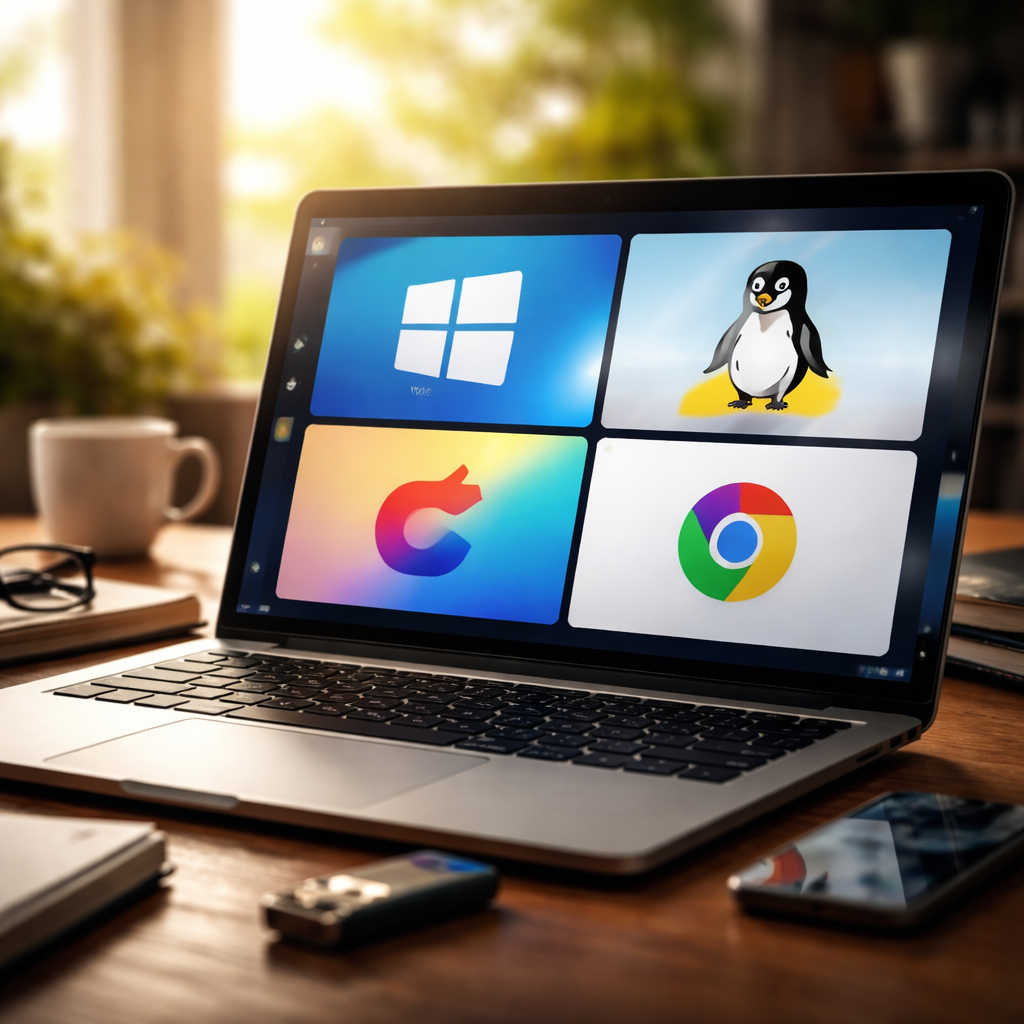
Switching to a different operating system feels like a big leap — until you actually try it. If you’ve been searching for a reliable alternative to Windows 11, the good news is that the landscape has never been more diverse or more user-friendly. Whether you’re frustrated by hardware requirements, privacy concerns, or just want something that feels less bloated, there are solid options worth exploring.
Why people start looking beyond Windows
Microsoft’s push toward stricter system requirements — including TPM 2.0 and a compatible CPU list — left many users with perfectly functional machines suddenly deemed “unsupported.” That alone drove a significant wave of people toward Linux distributions and other desktop environments. But hardware requirements aren’t the only reason. Data collection practices, forced updates, mandatory Microsoft account sign-ins, and the overall visual clutter of the interface have all contributed to growing dissatisfaction.
It’s worth being honest: no alternative is perfect, and switching does come with a learning curve. But for millions of users worldwide, that curve is absolutely worth it.
Linux distributions: the most popular route
Linux is the most common destination for those leaving the Windows ecosystem. The term “Linux” covers hundreds of distributions, but a handful consistently stand out for everyday desktop use.
- Ubuntu — beginner-friendly, massive community support, extensive software library via Snap and APT packages.
- Linux Mint — widely recommended for Windows migrants due to its familiar interface and stability focus.
- Fedora — favored by those who want cutting-edge software with a clean GNOME desktop experience.
- Zorin OS — specifically designed to ease the transition from Windows, with layouts that mimic the familiar taskbar setup.
- Pop!_OS — developed by System76, it’s highly polished and particularly strong for developers and creative professionals.
“The biggest misconception about Linux is that it’s only for programmers. Modern distributions like Mint or Zorin can be set up and used comfortably by anyone who can navigate a smartphone.”
Each of these systems runs on older hardware with ease, supports LibreOffice for document work, and handles web browsing, media playback, and communication apps without issues. The open-source desktop environment has matured dramatically over the past decade.
macOS: premium hardware, premium experience
If budget isn’t a constraint and you’re ready to invest in Apple hardware, macOS remains one of the most polished desktop operating systems available. It offers tight hardware-software integration, strong security architecture, and a clean interface that prioritizes usability. For creative professionals — video editors, designers, musicians — the Apple ecosystem with tools like Final Cut Pro, Logic Pro, and seamless iCloud integration is genuinely hard to beat.
The tradeoff is real, though. You’re locked into Apple’s hardware pricing, and customization is significantly more limited than on Linux. Still, for users who want a “just works” experience without the Windows overhead, macOS is a legitimate and widely-used choice.
ChromeOS: lightweight and underestimated
Google’s ChromeOS often gets dismissed as “just a browser,” but that description no longer holds. Modern Chromebooks support Android apps via the Google Play Store and can run Linux applications through the built-in Linux development environment. For users whose workflow revolves around web tools, Google Workspace, streaming, and communication platforms, ChromeOS is genuinely fast, secure, and low-maintenance.
It’s also worth noting that ChromeOS Flex — a version designed to be installed on existing PCs and Macs — gives aging hardware a new purpose without requiring a new device purchase.
| OS | Best for | Hardware requirement | Cost |
|---|---|---|---|
| Linux Mint | Windows migrants, everyday use | Low (works on older PCs) | Free |
| Ubuntu | Developers, general users | Moderate | Free |
| macOS | Creative professionals | Apple hardware only | Free (hardware cost applies) |
| ChromeOS Flex | Web-centric users, older hardware | Very low | Free |
| Zorin OS | Users new to Linux | Low | Free (Pro version available) |
Practical things to check before you switch
Before committing to any platform, it’s worth doing a quick audit of your current workflow. The transition is much smoother when you know what you’re dealing with in advance.
Ask yourself these questions:
- Which applications do you use daily — and do they have Linux or web-based equivalents?
- Do you rely on any Windows-only software that has no cross-platform version?
- Is gaming part of your routine? (Linux gaming has improved significantly through Steam’s Proton compatibility layer, but not all titles work perfectly.)
- Are you comfortable using a terminal occasionally, or do you need everything to be GUI-based?
Most popular software categories — browsers, email clients, office suites, media players, video conferencing tools — are fully covered across Linux and macOS. The exceptions are typically niche industry tools or certain games. Wine and Bottles are tools that allow running some Windows applications on Linux, though compatibility varies.
A tip before you dive in
Almost every Linux distribution offers a “live boot” option — you can run the OS directly from a USB drive without installing anything. This is the most practical way to test the experience on your actual hardware before making any commitment. Spend a few hours using the system for your real tasks, not just looking at the desktop. That alone will tell you more than any comparison article.
The reality is that switching operating systems has never been more accessible. The tools are mature, the communities are active, and the documentation is extensive. Whatever your reason for looking at alternatives — privacy, performance, cost, or simply curiosity — there’s a path that fits your situation.
The decision is less dramatic than it sounds
People tend to overthink the operating system switch. In practice, most day-to-day computing happens inside a browser, and that experience is nearly identical across platforms. The bigger adjustment is getting familiar with system settings, file management, and occasionally troubleshooting driver issues on Linux. But none of that requires technical expertise — just patience and a willingness to search for answers in communities like Reddit’s r/linux4noobs or the official Ubuntu forums.
Give yourself a few weeks with any new system before forming a final opinion. The initial unfamiliarity is not the same as difficulty — it’s just new. And for a lot of people, that’s exactly what makes the switch worth it.
