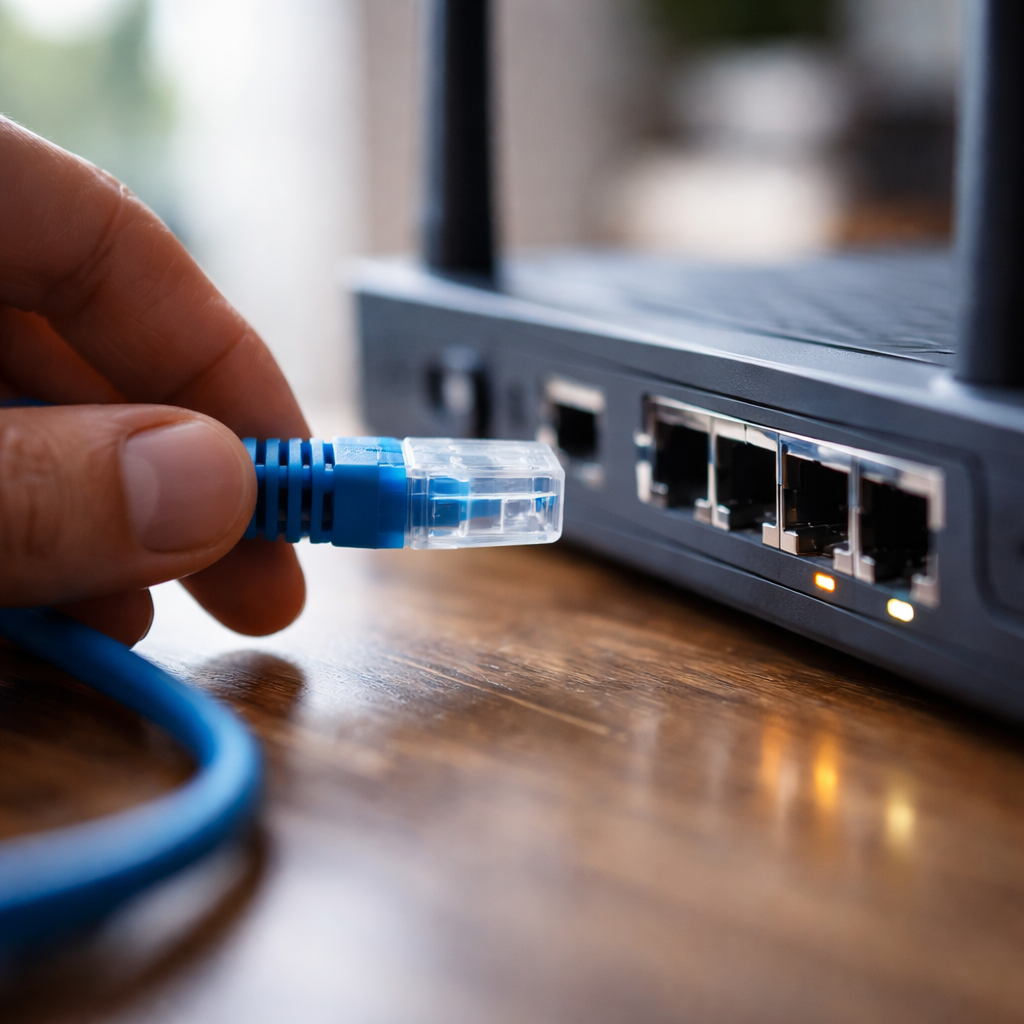
You plug in the cable, wait a few seconds — and nothing. No internet, no network icon, just a frustrating dead end. If your Ethernet connection not working is something you’ve been dealing with lately, you’re far from alone, and the good news is that most causes behind this issue are completely fixable without calling a technician.
Why wired connections fail in the first place
People often assume that if Wi-Fi works, a wired connection should “just work” too. In reality, Ethernet relies on a specific chain of components — the cable itself, the network adapter, the router port, and software drivers — and any single weak link can break the whole thing. Understanding where the failure actually sits is what separates a five-minute fix from an hour of pointless rebooting.
Start with the obvious — but don’t skip it
Before diving into device settings, run through the physical side of the setup. It sounds basic, but a surprising number of connectivity issues trace back to something simple that gets overlooked in the rush to open control panels.
- Check that the RJ45 cable clicks firmly into both the router and the computer — a loose connection gives no signal at all.
- Look at the LED indicator on your router’s LAN port. If it’s not lit or blinking, the port may be faulty.
- Try a different Ethernet cable. Cables can fail internally without any visible damage.
- Plug into a different port on the router or switch — ports do burn out over time.
- Restart both the router and your computer before anything else.
A damaged cable is responsible for roughly 20–30% of reported wired network issues in home environments, according to network technicians who handle residential support calls.
Network adapter settings and driver issues
If the physical layer looks fine, the next place to look is your operating system. On Windows, the network adapter can be disabled, misconfigured, or running an outdated driver — all of which will prevent a LAN connection from being established.
Open Device Manager and expand the “Network adapters” section. If you see a yellow warning icon next to your Ethernet adapter, that’s a driver issue. Right-click the adapter and choose “Update driver.” If updating doesn’t help, try uninstalling the driver entirely and restarting your system — Windows will attempt to reinstall a working version automatically.
IP address conflicts and DHCP problems
Another common culprit is an IP address conflict or a failure in DHCP assignment. When your router can’t assign your device a valid IP address, the adapter shows as connected but internet access is blocked. You may see an error like “No internet, secured” in Windows or a self-assigned IP on macOS.
To reset TCP/IP and flush the DNS cache on Windows, open Command Prompt as Administrator and run the following commands one by one:
| Command | What it does |
|---|---|
| netsh int ip reset | Resets the TCP/IP stack to default settings |
| netsh winsock reset | Resets Winsock catalog, fixing socket-level errors |
| ipconfig /release | Releases the current IP address from the adapter |
| ipconfig /renew | Requests a fresh IP address from the DHCP server |
| ipconfig /flushdns | Clears the local DNS resolver cache |
After running these commands, restart your computer and check the connection again. This sequence resolves a wide range of software-level network failures that have nothing to do with the hardware.
What to check on the router side
Sometimes the issue isn’t the computer at all. Log in to your router’s admin panel (usually via 192.168.1.1 or 192.168.0.1) and check whether the LAN ports are enabled. Some routers allow individual port management, and a port can be accidentally disabled through a firmware update or a misconfigured setting.
Also verify that the DHCP server is active and has a sufficient address pool. If the pool is exhausted — meaning too many devices have claimed addresses — your machine won’t receive one, and the network adapter will appear connected without actually having internet access.
macOS and Linux users aren’t immune
Most guides focus on Windows, but wired connection failures on macOS and Linux follow similar logic. On a Mac, go to System Settings → Network, select your Ethernet adapter, and check whether it’s listed as “Connected.” If the adapter doesn’t appear at all, the issue is likely a faulty USB-C to Ethernet adapter — a very common problem on newer MacBook models that lack a built-in LAN port.
On Linux distributions, you can check the status of your network interface using the terminal command ip link show. If the interface is shown as “DOWN,” bring it up with sudo ip link set eth0 up (replacing eth0 with your actual interface name). For persistent issues, checking NetworkManager logs with journalctl -u NetworkManager often reveals exactly what’s going wrong.
When the connection works but keeps dropping
An intermittent wired connection that connects and disconnects repeatedly is a different kind of problem. This behavior usually points to one of three things: a damaged cable that passes signal inconsistently, a failing network adapter, or a power management setting that’s putting the adapter to sleep to save energy.
On Windows, you can disable this behavior by opening Device Manager, right-clicking your Ethernet adapter, selecting Properties, and navigating to the Power Management tab. Uncheck the option that allows the computer to turn off the device to save power. This small change often eliminates random disconnections entirely.
Still stuck? Here’s how to isolate the problem methodically
- Test the cable on a different device — if it works there, the cable is fine and the problem is on your machine.
- Try your computer on a different network — if it connects elsewhere, the issue is with your router or ISP.
- Check whether your ISP is experiencing an outage in your area before spending time on internal diagnostics.
- If you have a USB to Ethernet adapter available, use it as a temporary replacement to test whether the built-in NIC is faulty.
- On Windows, check the Event Viewer under Windows Logs → System for any network-related error entries.
Wired connections are generally more reliable than wireless ones, which makes it all the more frustrating when they stop working. But because there are fewer variables involved compared to Wi-Fi — no signal interference, no authentication issues — the problem space is actually more contained and easier to work through step by step. Most people who approach it systematically find the answer within the first few checks.
