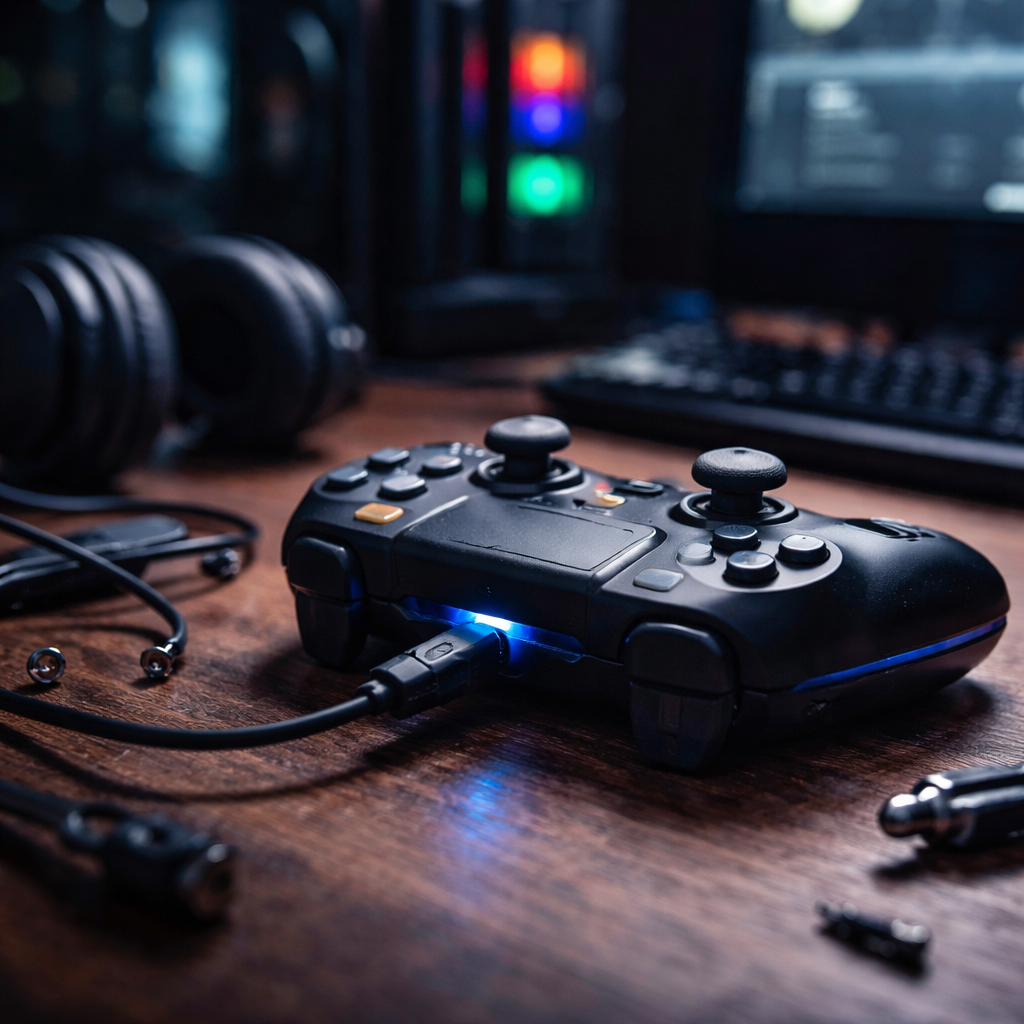
You plug in your controller, launch your favorite game, and nothing happens — the game controller not working issue is one of the most frustrating things a gamer can face, especially when everything seemed fine just yesterday. Before you assume the device is broken or start shopping for a replacement, it is worth knowing that the vast majority of controller problems come down to software conflicts, connection issues, or misconfigured settings that are completely fixable without spending a cent.
Why controllers stop responding in the first place
Understanding the root cause saves you from chasing the wrong fix. Controller failures rarely happen out of nowhere — something changed, even if you did not notice it. A recent system update, a new USB hub, a drained battery, or a driver conflict is usually hiding behind the problem. The good news is that once you know what to look for, the path to a working controller becomes much clearer.
Common culprits break down into three categories: hardware issues, software and driver problems, and connection failures. Each one has a distinct set of symptoms and solutions, so it helps to identify which category you are dealing with before diving into fixes.
Start with the basics before anything else
It sounds obvious, but a surprising number of controller issues are solved by checking the simplest things first. Run through this quick checklist before touching any settings:
- Check the battery level — wireless controllers will lag or disconnect entirely when the charge drops below a certain threshold
- Try a different USB port or cable if you are using a wired connection
- Restart both the console or PC and the controller itself
- Make sure no other Bluetooth or USB devices are interfering with the signal
- Test the controller on a different device to confirm whether the problem is with the controller or the platform
If the controller works on another device, the issue is almost certainly on the software or settings side of your main platform. That narrows things down considerably and points you toward driver and configuration fixes.
Fixing controller issues on PC
Windows is the most common environment where gamepad problems occur, largely because of the variety of hardware and driver combinations involved. The Device Manager is your first stop. Open it, find your controller under Human Interface Devices or Universal Serial Bus controllers, and check for any warning icons. A yellow exclamation mark usually means a driver issue that can be resolved by right-clicking and selecting Update driver.
If updating the driver does not help, try uninstalling the device entirely from Device Manager, then unplugging and replugging the controller. Windows will reinstall the driver automatically, and this process often clears hidden conflicts that an update alone cannot fix.
For Xbox controllers, the Xbox Accessories app from the Microsoft Store lets you update firmware directly, which solves a number of input recognition problems. PlayStation controllers connected via USB usually require additional software like DS4Windows to be recognized properly in non-PlayStation games — without it, the system may detect the hardware but the inputs will not map correctly.
Bluetooth connection problems and how to handle them
Wireless controller issues deserve their own attention because Bluetooth troubleshooting follows a different logic than USB fixes. If your controller connects briefly then drops, or fails to pair at all, try the following approach:
| Symptom | Likely Cause | Recommended Fix |
|---|---|---|
| Controller pairs but inputs are not recognized | Driver or app conflict | Reinstall Bluetooth driver, use dedicated software |
| Controller disconnects every few minutes | Power management settings | Disable USB selective suspend in power options |
| Controller will not enter pairing mode | Previous pairing still stored | Reset the controller and clear pairing history |
| Significant input lag over Bluetooth | Interference or distance | Move closer, remove obstacles, switch to 2.4GHz dongle |
One often-overlooked setting on Windows is the Bluetooth power management option. By default, Windows is allowed to turn off Bluetooth devices to save power, which can cause controllers to drop mid-session. Disabling this option in Device Manager under the Power Management tab of the Bluetooth adapter keeps the connection stable.
Console-specific steps that actually work
On PlayStation consoles, a quick reset using the small button on the back of the DualSense or DualShock controller will clear any pairing issues. Use a pin or toothpick to hold it for about five seconds, then reconnect via USB cable while the console is on. This re-establishes a clean connection and solves most unresponsive controller situations.
Xbox controllers are generally more stable but can develop sync issues after firmware updates. The sync button on both the controller and the console can be used to re-pair them. If that fails, connecting via USB and updating the firmware through the Xbox Accessories app is the most reliable resolution path available.
When the problem is the game, not the controller
Sometimes the controller is working perfectly but a specific game refuses to recognize it. This is more common with PC gaming than consoles and usually comes down to the game expecting a specific input standard. Many older or indie PC titles only natively support XInput, which is the protocol used by Xbox controllers. If you are using a PlayStation or third-party controller, it may show up as a DirectInput device instead, and the game simply does not know how to read it.
Steam’s controller configuration settings are one of the most practical tools available for this exact problem. With Steam Input enabled, you can remap any controller layout to match what the game expects, and Steam handles the translation invisibly in the background. This works for the vast majority of games available on that platform and removes the need for third-party remapping tools in most cases.
Physical damage and when to take it seriously
If you have worked through every software fix and the controller is still unresponsive, it is time to consider physical causes. Joystick drift, sticky buttons, and damaged USB ports are all hardware-level problems that software cannot resolve. Joystick drift — where the character moves without input — is a known hardware issue on several controller models and is often caused by wear on the potentiometer inside the analog stick.
Before spending money on repairs or a new controller, check whether your device is covered under warranty. Several manufacturers have extended warranty programs specifically for drift-related defects due to how widespread the issue became across certain product lines. A quick search with your controller model and the word “warranty” will show whether a repair or replacement program applies to you.
Getting back in the game without unnecessary hassle
Controller problems are genuinely annoying, but they are almost never permanent. The combination of a systematic approach — starting from the simplest checks and moving toward deeper software or hardware fixes — resolves the vast majority of cases without expert help or expensive replacements. Keep your drivers and firmware updated regularly, manage your Bluetooth power settings, and use platform-native tools like Steam Input or Xbox Accessories to maintain smooth compatibility. A few minutes of targeted troubleshooting is almost always enough to get you back to playing without interruption.
