You plug in your headphones, hit play — and nothing. Or worse, sound comes from only one side, crackling like an old radio. When your headphone jack not working becomes your morning reality, it’s easy to assume the worst. But in most cases, the fix is simpler than you’d expect, and you don’t need a repair shop to sort it out.
Why the audio jack stops working in the first place
Before jumping into fixes, it helps to understand what actually causes the problem. The 3.5mm audio port is a mechanical connection — it gets plugged and unplugged hundreds of times, collects lint from pockets, and occasionally takes the brunt of a dropped phone. Software issues can also mimic a broken jack, making the diagnosis a little tricky.
Here are the most common culprits behind a non-functional headphone port:
- Accumulated dust, lint, or debris inside the jack preventing proper contact
- A software or driver conflict causing the device to misroute audio output
- Physical damage to the port from a bent or broken connector
- Incorrect audio output settings on the device
- Faulty headphones rather than a faulty port
- A stuck headphone mode (the device thinks headphones are still plugged in)
Knowing the likely cause helps you avoid unnecessary steps and go straight to what actually matters.
Start with the obvious: clean the port
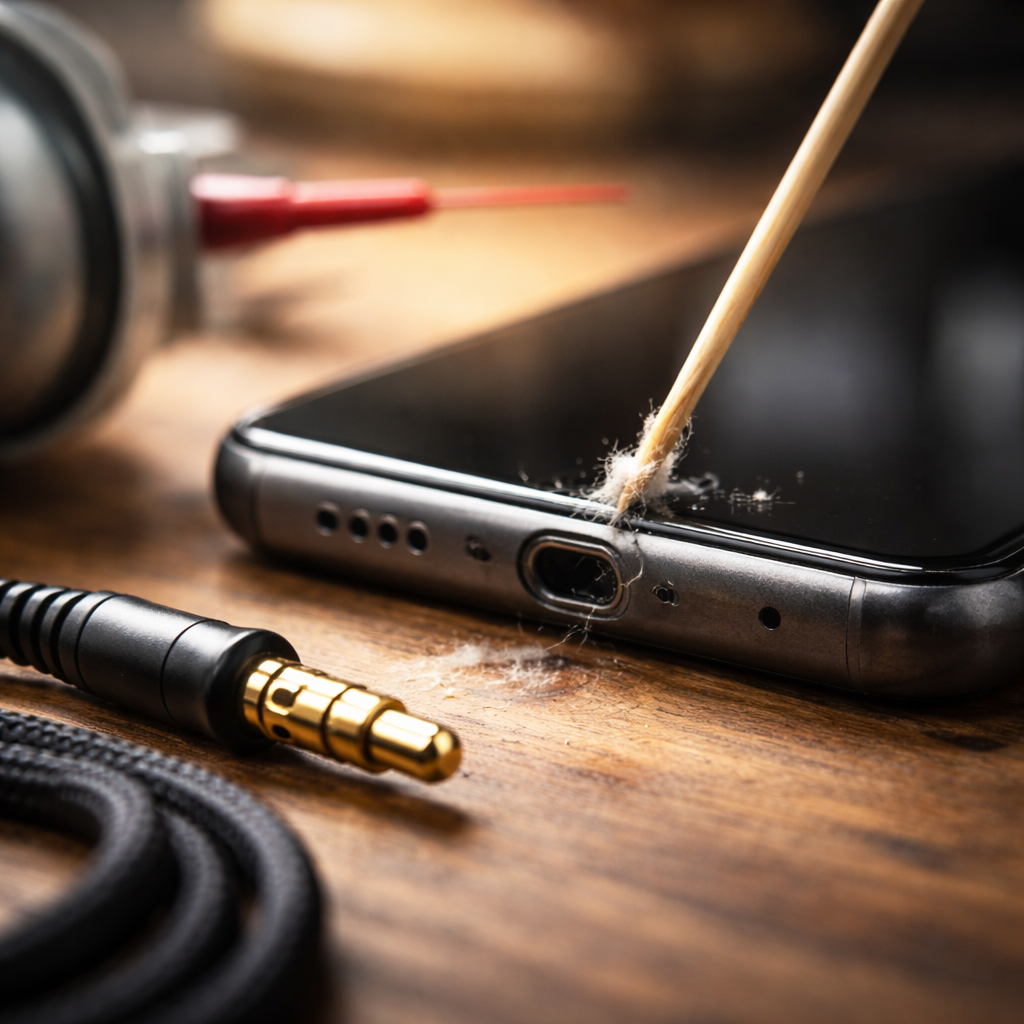
This sounds too simple, but compressed air and a wooden toothpick have solved more audio jack problems than any software update ever could. Lint from jeans pockets builds up inside the port over time and physically prevents the connector from making full contact.
Use a can of compressed air to blow short bursts into the jack. If you can see visible debris, gently dislodge it with a dry wooden toothpick — never a metal object, which can damage internal contacts.
Once you’ve cleaned the port, plug in your headphones again and test with a known-working pair to rule out the headphones themselves as the source of the issue.
Software-side fixes that actually work
If the port looks clean and your headphones work on another device, the problem is likely software. This is especially common on Android phones and Windows laptops, where audio routing settings or driver conflicts can silently redirect sound away from the headphone output.
On Android
- Go to Settings → Sound and check that media volume is not muted
- Check whether the device is stuck in headphone mode — some Android phones show a headphone icon in the status bar even when nothing is connected
- Try plugging and unplugging the headphones several times to reset the detection sensor
- Reboot the phone with headphones plugged in, then unplug after the restart
On Windows
- Right-click the sound icon in the taskbar and select “Open Sound settings”
- Under Output, manually select the headphones as the active audio device
- Open Device Manager, find “Sound, video and game controllers,” right-click your audio driver and select “Update driver”
- If updating doesn’t help, uninstall the driver and let Windows reinstall it automatically on reboot
On iPhone or iPad
Apple devices removed the 3.5mm jack from most of their lineup, but older models still have it. If yours stopped working, check whether the device is connected to a Bluetooth speaker or AirPods — iOS sometimes automatically routes audio to the last connected wireless device. Disconnecting Bluetooth entirely often resolves the issue instantly.
When the fix requires a little more effort
Sometimes the port is genuinely damaged — a connector broke off inside it, the internal contacts got bent, or the port itself was loosened from the circuit board after a drop. In these cases, home cleaning and software tweaks won’t do much.
| Symptom | Likely cause | Recommended action |
|---|---|---|
| No sound at all, port clean | Driver issue or hardware fault | Update or reinstall audio drivers; test port |
| Sound from one ear only | Dirty contacts or damaged cable | Clean port; try different headphones |
| Crackling or static | Loose port or worn connector | Wiggle the jack gently; consider repair |
| Device stuck in headphone mode | Sensor failure or software bug | Restart device; use a headphone mode fix app |
| Broken piece stuck inside port | Connector tip snapped off | Professional repair recommended |
If a piece of a broken headphone jack is stuck inside the port, resist the urge to dig it out with a metal object. A thin adhesive — like a small dot of super glue on the tip of a toothpick — pressed against the metal fragment and left to dry can sometimes pull it out. Done carefully, this works. Done hastily, it makes things worse. When in doubt, a repair technician is the right call.
Alternatives worth considering
If your audio jack is beyond repair — or if the repair cost doesn’t make sense for an older device — there are practical workarounds that don’t require giving up on quality audio.
- USB-C to 3.5mm adapters work reliably on most modern Android phones and provide clean audio output
- Lightning to 3.5mm adapters are the standard solution for older iPhones without a headphone port
- Bluetooth headphones eliminate the need for a wired connection entirely, though they add latency for video work
- USB-C headphones connect directly and often deliver better audio quality than analog alternatives
Adapters are inexpensive and widely available, making them an easy stopgap while you decide whether a full repair is worth it.
Before you give up on the jack entirely
Most people assume hardware damage the moment audio stops working through their port. In practice, a significant number of these issues come down to accumulated debris, a confused audio driver, or a Bluetooth device quietly stealing the audio stream in the background. Running through the software and cleaning steps first costs nothing and resolves the problem more often than you’d think.
If you’ve cleaned the port, updated the drivers, ruled out Bluetooth conflicts, and tested with multiple pairs of headphones — and the problem is still there — then yes, it’s likely a physical issue worth taking to a technician. Many phone repair shops can replace a 3.5mm audio jack for a modest cost, often within the same day. For laptops, the repair is usually straightforward as well, provided the port is soldered onto a replaceable module rather than directly onto the main board.
Either way, a silent headphone port is rarely the end of the road — it’s usually just a problem that needs the right starting point.
