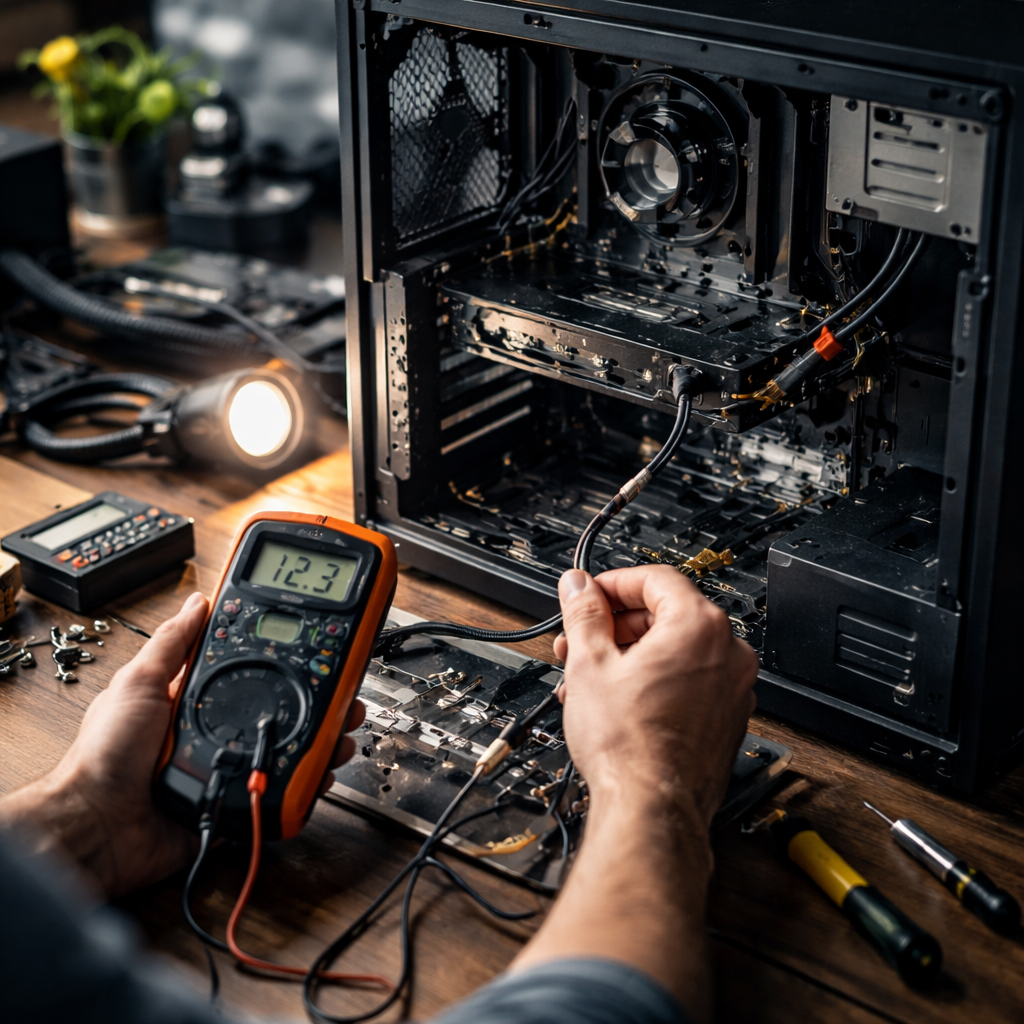
Most people have been there — you press the power button, and nothing happens. No fan noise, no startup sound, no light on the screen. Knowing how to fix a computer that won’t turn on is one of those practical skills that can save you from unnecessary panic, an expensive repair visit, or even replacing a machine that still has plenty of life left in it. The good news is that the majority of cases have a straightforward explanation, and many of them you can resolve on your own in under an hour.
Before you assume the worst, check the obvious
This might sound too simple, but a surprisingly large number of “dead” computers turn out to have a loose power cable, a switched-off power strip, or a drained laptop battery. Before opening any panels or searching for replacement parts, walk through this quick checklist:
- Is the power cable firmly seated in both the wall outlet and the computer or laptop?
- Is the power strip or surge protector switched on and functioning?
- For laptops — is the charging adapter light on? Has the battery had at least 15–20 minutes to charge?
- Is the monitor or display connected and powered on separately (for desktop setups)?
It sounds almost embarrassing to list these, but even experienced technicians confirm that a significant share of “no power” calls end with a reconnected cable. Once you’ve ruled out the basics, you can start investigating deeper.
When the computer shows signs of life — but doesn’t fully boot
Sometimes the machine does something — fans spin for a second, LEDs flicker, or you hear a beep — but it still refuses to fully start up. This is actually useful information, because it tells you the power supply is delivering some electricity, and the problem is likely happening at a different stage.
One of the most common culprits in this situation is RAM. Unseated or faulty memory sticks can prevent a system from posting — meaning it never even reaches the operating system loading screen. If your computer beeps in a pattern when you try to start it, those beeps are actually error codes defined by the motherboard manufacturer. A quick search of the beep pattern along with your motherboard brand (for example, “three long beeps ASUS”) will usually tell you exactly what the board is complaining about.
A single long beep followed by two short beeps on many systems points directly to a display or memory issue — not a catastrophic hardware failure.
To check the RAM, power off the computer completely, open the side panel, and gently remove the memory sticks. Clean the gold contacts with a dry eraser and reseat them firmly. If you have two sticks, try booting with just one at a time — this helps identify whether one module has failed.
Power supply problems: silent and easy to overlook
A failing or dead power supply unit (PSU) is one of the more common reasons a desktop computer won’t respond at all. When the PSU fails, there’s often no indication — no beeps, no lights, nothing. The machine behaves as if it has no power at all, even when it’s plugged in.
If you have access to a PSU tester (a small, inexpensive tool available at most electronics retailers), you can check whether the unit is outputting voltage correctly. Alternatively, if you have a spare PSU lying around, swapping it in temporarily is one of the fastest ways to confirm or rule out this component as the problem.
| Symptom | Likely cause | Suggested action |
|---|---|---|
| No response at all when pressing power | Dead PSU or faulty power cable | Test PSU, replace power cable |
| Fans spin briefly, then shut off | Overheating, RAM issue, or PSU voltage problem | Check RAM seating, clean dust, test PSU |
| Beeping sounds with no display | RAM failure or GPU issue | Reseat or replace RAM, check GPU connection |
| Laptop doesn’t power on despite being plugged in | Faulty charger, dead battery, or motherboard fault | Test with different charger, perform battery reset |
Laptop-specific steps worth knowing
Laptops have their own set of quirks when it comes to power issues. One technique that many people don’t know about is the hard reset — and it works more often than you’d expect. Here’s how to do it:
- Disconnect the charger and remove the battery if it’s removable.
- Hold the power button down for 30 seconds.
- Reconnect only the charger (without the battery if possible) and try powering on.
This drains any residual charge from the capacitors and can resolve situations where the system is stuck in a locked state. It’s not a myth — it works because some power circuitry can get caught in a fault loop that requires a full discharge to reset.
Also worth checking: the charging port itself. Laptop charging ports, especially on older machines, can become loose or damaged internally. If the charging light on the adapter behaves inconsistently or the port feels wobbly, the connector may need professional soldering — but at least you’ll know what you’re dealing with.
Overheating as a hidden shutdown trigger
Modern computers are designed to shut themselves off before heat causes permanent damage. If your system powers on but shuts down within seconds or minutes — or if it was working fine and then stopped turning on after an intensive session — overheating is a strong suspect.
Dust buildup inside the case is the most frequent reason for thermal shutdowns. Over time, dust accumulates on heatsinks, fans, and vents, insulating heat rather than dispersing it. A can of compressed air and a careful cleaning session can make a remarkable difference. For laptops, the vents on the bottom and sides are particularly prone to clogging.
Thermal paste between the CPU and its heatsink also degrades over time. On machines that are several years old, reapplying thermal compound can drop temperatures by 15–20°C — sometimes more.
When the hardware checks out but something else is wrong
If the machine powers on but gets stuck before loading the operating system — frozen on a logo, looping on a black screen, or displaying an error like “No bootable device found” — the problem has shifted from hardware to storage or software.
A disconnected or failing hard drive or SSD can produce exactly this kind of behavior. Check that the storage drive is properly connected inside the case. If you can access the BIOS or UEFI (usually by pressing Delete, F2, or F12 during startup), check whether the drive appears in the list of detected devices. If it doesn’t show up, the drive may have failed or its connection is loose.
Corrupted system files from an interrupted update or improper shutdown can also prevent booting. In this case, most operating systems offer recovery options — Windows has Startup Repair accessible via installation media, and macOS has Recovery Mode built in. Linux systems can be rescued using a live USB environment. These tools are specifically designed for situations like this and are worth trying before concluding that the drive is dead.
Knowing when to stop and hand it off
There’s a point in troubleshooting where further DIY attempts risk making things worse, particularly if you’re dealing with a potentially failing motherboard, a damaged charging circuit, or physical damage from a drop or liquid exposure. If you’ve worked through the steps above and the computer still won’t respond, the most practical move is to bring it to a qualified technician with a clear description of everything you’ve already tested.
Being able to say “I’ve checked the power cable, reseated the RAM, tested with a different PSU, and confirmed the drive shows up in BIOS” saves the technician significant diagnostic time — and often reduces your repair cost. That knowledge also means you’ll have a much clearer picture of whether the repair is worth pursuing or whether it makes more sense to invest in a replacement.
Either way, working through these steps systematically puts you in a far better position than simply handing over a machine with no information. And more often than not, the fix turns out to be simpler than the silence of a dead screen suggests.
