A screen that flickers unexpectedly can turn a productive workday into a frustrating experience within minutes — and knowing how to fix a flickering monitor screen properly means understanding that the cause is almost never just one thing. It could be your cable, your refresh rate setting, your graphics driver, or even the monitor itself sending out a quiet signal that it’s reaching the end of its life. The good news is that most cases are entirely solvable without replacing your hardware.
Start with the obvious: cables and connections
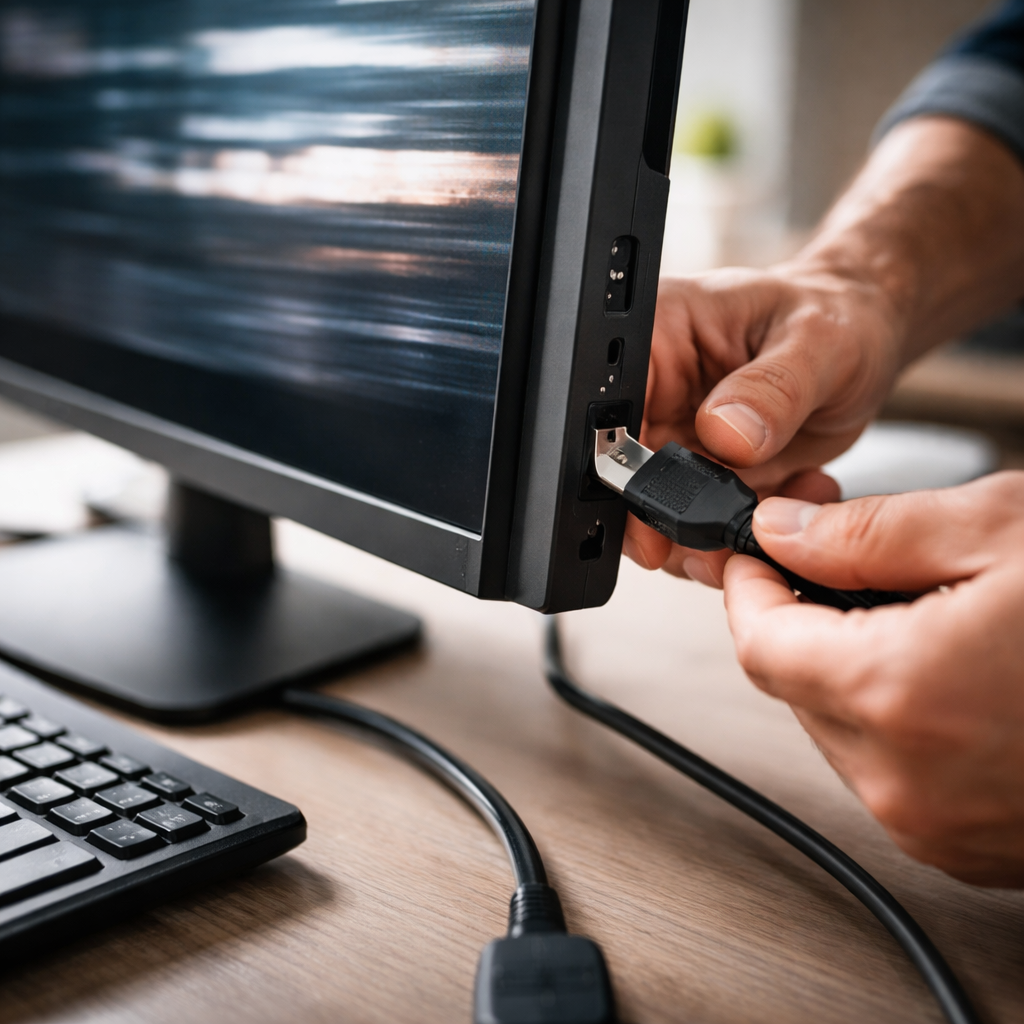
Before diving into software settings or driver updates, physically inspect everything connected between your monitor and your computer. A loose DisplayPort, HDMI, or DVI cable is one of the most common and most overlooked causes of display flickering. Even if the cable looks securely plugged in, disconnect it completely, check the connector pins for any bending or debris, and firmly reconnect it.
If you have a spare cable available, swapping it out is one of the fastest diagnostic steps you can take. Cable quality matters more than most people expect — a cheap or aging HDMI cable can struggle to maintain a stable signal at higher resolutions or refresh rates, causing intermittent flicker that looks like a driver problem but isn’t.
A flickering display caused by a faulty cable will typically show flicker that correlates with physical movement — touching the cable, adjusting the monitor angle, or moving the desk. That pattern alone is a strong diagnostic clue.
Check and correct the refresh rate setting
An incorrect refresh rate is another surprisingly frequent culprit. If your monitor is set to a refresh rate it doesn’t natively support — or if it has been misconfigured after a driver update — you may see persistent screen flickering that feels hardware-related but is entirely software-driven.
On Windows, you can check this by going to Display Settings, then Advanced Display Settings, where you’ll find the current refresh rate. Make sure it matches what your monitor is rated for — typically 60Hz, 75Hz, 144Hz, or higher depending on the model. On macOS, this option is available under System Settings in the Displays section.
| Monitor Type | Typical Supported Refresh Rate | Common Issues When Mismatched |
|---|---|---|
| Standard office display | 60Hz | Flicker when set to 75Hz or above |
| Gaming monitor | 144Hz / 165Hz | Instability when forced below native rate |
| Laptop screen (external) | 60Hz | Flicker when GPU pushes higher rates via HDMI |
Update or roll back your graphics driver
Graphics driver issues are responsible for a significant share of monitor flickering problems, particularly after a system update or a new driver installation. Both outdated drivers and recently updated ones can cause display instability — which means the fix might involve updating to a newer version or rolling back to a previous one that worked correctly.
On Windows, open Device Manager, expand the Display Adapters section, right-click your GPU, and choose Update Driver. If the flicker started after a recent driver update, select Properties and use the Roll Back Driver option if it’s available. NVIDIA, AMD, and Intel all provide clean uninstall tools that let you remove current drivers entirely before reinstalling — this approach often resolves conflicts that a standard update misses.
Incompatible apps and background processes
Windows in particular has a known behavior where certain applications cause the taskbar and desktop to flicker repeatedly. This is usually tied to an app that isn’t compatible with Desktop Window Manager. A reliable way to identify this is to open Task Manager while the flicker is happening — if Task Manager itself flickers along with everything else, the problem is likely the graphics driver or a system-level issue. If Task Manager stays stable while the rest of the screen flickers, a specific application is almost certainly the cause.
Common offenders include older versions of antivirus software, certain notification apps, and system utilities that hook into display rendering. Disabling startup programs one by one and observing whether the flicker stops can help isolate the problematic application.
Hardware diagnostics: when the monitor itself is the issue
If you’ve worked through software and connection checks without success, the monitor hardware may be failing. Internal components — particularly the backlight inverter in older LCD monitors — can degrade over time and produce flickering that worsens as the screen heats up during use.
- Connect your monitor to a different computer to see if the flicker follows the monitor or stays with the original machine
- Connect a different monitor to your computer to rule out GPU output as the source
- Check whether the flicker appears during the monitor’s startup screen (before your OS loads) — if it does, the issue is hardware, not software
- Observe whether the flickering intensifies after 15–20 minutes of use, which may suggest heat-related component failure
If the flicker appears only on your monitor regardless of which computer it’s connected to, and especially if it appears before the operating system loads, the display panel or internal circuitry has likely developed a fault. At that stage, professional repair or replacement becomes the realistic next step.
A few more things worth checking
Electromagnetic interference from nearby devices — including speakers, fans, or wireless charging pads placed close to the monitor — can occasionally cause display disturbances, particularly on older CRT-type displays. While less common with modern LCD and OLED panels, it’s still worth testing by relocating nearby electronics temporarily.
Power delivery is another factor that often goes unexamined. Monitors connected through USB-C or Thunderbolt can experience flicker if the cable or hub doesn’t deliver consistent power alongside the video signal. Using a certified cable that supports the full wattage and bandwidth your setup requires often resolves these edge-case scenarios without any driver or settings changes at all.
Where to go from here
Screen flickering rarely appears without a reason — it’s your system’s way of pointing to something that needs attention. Working through the steps above in order, from the simplest physical checks to deeper software and hardware diagnostics, covers the vast majority of real-world cases. Most people find the fix before reaching the hardware replacement stage, simply because cable integrity and driver configuration resolve the issue more often than any other cause. Stay methodical, test one variable at a time, and the flicker almost always has a traceable source.
