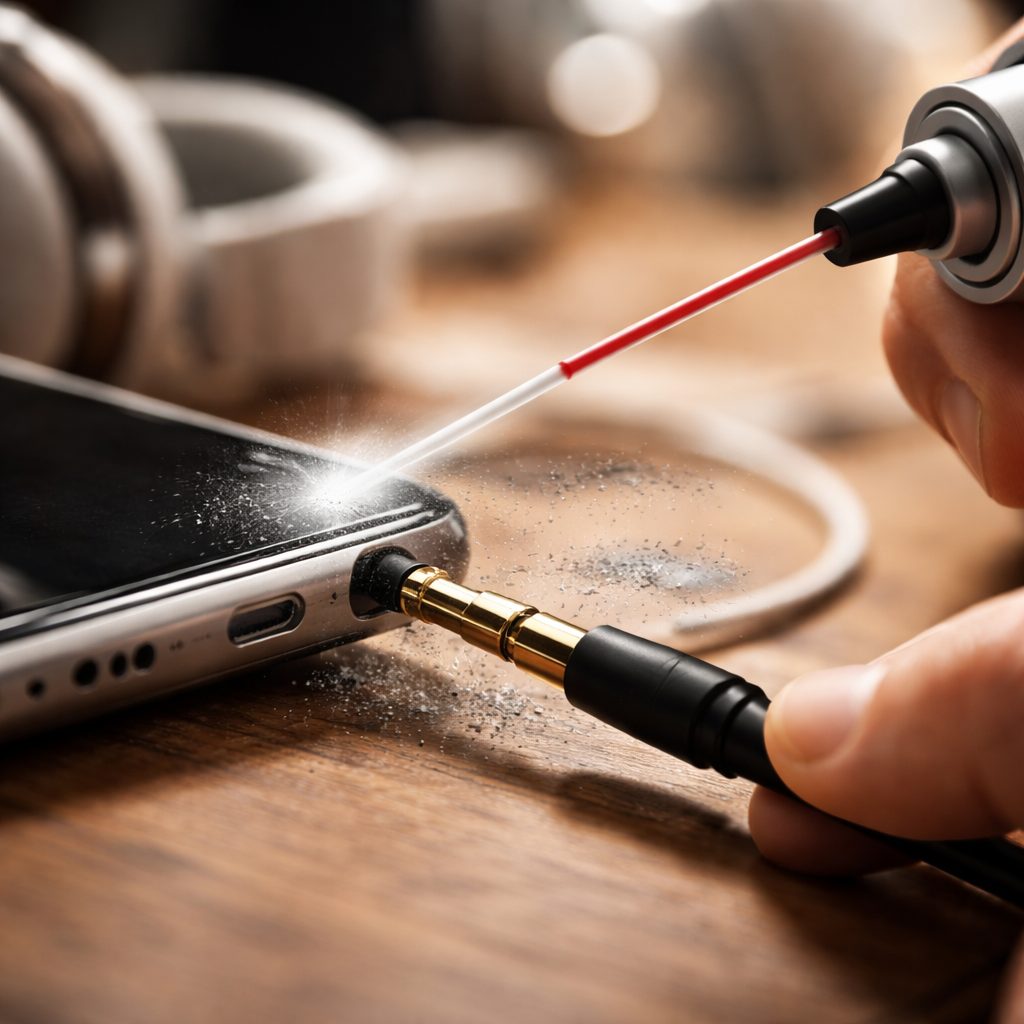
Most people assume a silent headphone jack means broken hardware — but in reality, learning how to fix a headphone jack with no sound often comes down to a handful of surprisingly simple checks that anyone can do at home, no soldering iron required. Before you toss your headphones or book a repair appointment, give these steps a genuine try.
Why your headphone jack goes silent in the first place
The 3.5mm audio jack is a small but surprisingly complex contact point. Every time you plug and unplug a connector, the metal contacts inside experience friction. Over time, that friction — combined with dust, pocket lint, and oxidation — disrupts the electrical connection that carries audio signals to your ears. The result is either complete silence, audio only in one ear, or a crackling, intermittent sound.
Understanding the root cause helps you avoid wasting time on fixes that don’t apply to your situation. The most common culprits fall into a few clear categories.
- Physical debris or lint packed inside the jack port
- Oxidized or bent contact pins inside the socket
- Software or driver-level audio routing issues
- A damaged or frayed headphone cable near the plug
- Incorrect audio output settings on the device
Start with the simplest checks — they work more often than you’d think
It sounds almost too obvious, but the first thing to verify is whether the plug is fully seated in the port. A partial connection is one of the most common reasons for one-sided or missing audio, especially with older jacks that have slightly worn spring tension. Push the plug in firmly and give it a gentle quarter-turn while audio is playing — if the sound flickers or returns, the connection is the issue, not the hardware itself.
Next, test the same headphones on a different device. This single step immediately tells you whether the problem lives in the headphones or in the device’s audio output. If your headphones work fine elsewhere, the issue is with the jack or the audio settings on your original device.
A quick swap test — trying a different pair of headphones on the same device — saves hours of troubleshooting in the wrong direction.
Cleaning the jack: the step most people skip
Dust and lint inside the audio port are responsible for a surprisingly large percentage of “dead” headphone jacks. When debris packs into the socket, the plug can’t make full contact with the internal pins, and audio cuts out entirely or becomes distorted.
The safest cleaning approach uses a can of compressed air. Hold the device with the port facing downward and use short bursts to dislodge debris without pushing it deeper. If compressed air isn’t available, a dry wooden toothpick — never metal — can be used to very gently sweep the inside of the port in a circular motion. Avoid cotton swabs, as the fibers tend to snag on the contact pins and make the problem worse.
| Cleaning tool | Safe to use? | Notes |
|---|---|---|
| Compressed air | Yes | Best option — use short bursts |
| Wooden toothpick | Yes, with care | Gentle sweeping only, no pressure |
| Cotton swab | Not recommended | Fibers can get caught inside |
| Metal pin or needle | No | Risk of bending contact pins |
| Isopropyl alcohol (90%+) | Yes, in small amounts | Applied to toothpick, not poured in directly |
Software and settings fixes for phones and computers
If the physical port looks clean and the connection feels solid, the issue may be sitting at the software level — and this is especially common after system updates.
On Windows, open Sound Settings and check that the default playback device is set to your headphones, not the built-in speakers or another output. Sometimes the system automatically reroutes audio after an update without notifying the user. Right-clicking the volume icon and selecting “Troubleshoot sound problems” runs a built-in diagnostic that catches common driver conflicts.
On Android, certain devices have a separate media volume that can be turned down independently of the ringer. Check that the media volume slider is raised while audio is playing. Some Android versions also have an “audio balance” setting under Accessibility that, if shifted fully to one side, creates the impression of no sound in one ear.
On a Mac, go to System Settings, then Sound, and confirm the output is directed to the correct device. macOS sometimes caches an incorrect audio configuration, and simply toggling the output device off and back on resets it.
A quick checklist for software-side troubleshooting
- Confirm the correct audio output device is selected in system settings
- Check that no accessibility audio balance setting is skewed to one side
- Update or reinstall audio drivers (Windows users especially)
- Restart the device completely — not just sleep mode
- Test with a different app to rule out an app-specific audio bug
When the cable or plug itself is the problem
If every test points to the headphones rather than the device, look closely at the cable — particularly the section closest to the 3.5mm plug. This is the highest-stress point on any pair of wired headphones. The repeated bending that happens during daily use causes the internal wires to fatigue and eventually break, even when the outer jacket looks intact.
To confirm this is the issue, hold the plug end of the cable and bend it gently in different directions while audio is playing. If the sound cuts in and out depending on how you bend it, the internal wire has a break near the connector. At this point, the options are a DIY re-solder (which is achievable with basic soldering equipment and a few tutorials) or replacing the cable if the headphones have a detachable cord.
For headphones with a fixed, non-detachable cable, professional repair is worth considering for high-quality models. For budget headphones, replacement often makes more practical sense.
What to do when nothing works
If you’ve cleaned the port, confirmed the settings, tested across multiple devices, and ruled out cable damage — and still have no audio — the internal contacts inside the jack socket itself may be bent out of alignment. This is more common on devices that have been dropped, or where someone pulled out a headphone plug at a sharp angle repeatedly over time.
At this point, the repair options depend on the device. For smartphones and laptops, replacing the headphone jack module is a standard repair that most local electronics repair shops handle quickly and affordably. Some newer devices also support audio over USB-C or Bluetooth, which can serve as a permanent workaround if the 3.5mm jack is beyond saving.
Using a USB-C to 3.5mm adapter isn’t a workaround to be ashamed of — on many modern devices, it actually delivers cleaner audio than a worn-out analog jack.
The fix that gets overlooked most often
After going through every hardware and software check, a significant number of people discover the real issue was dust in the port all along — or a media volume setting they had never noticed before. The lesson here is to move methodically from the simplest possible explanation toward the more complex ones, rather than assuming the worst immediately.
Headphone jacks are durable by design, and most audio problems that appear to be hardware failures are actually recoverable with patience and the right approach. Take it one step at a time, test after each change, and you’ll have a much clearer picture of exactly what needs fixing — and whether it’s something you can handle yourself or pass on to a technician.
