Most people assume a slow computer means it’s time for a new one — but that’s rarely true. Learning how to speed up a slow computer is one of the most practical skills you can have, and in the majority of cases, a few targeted actions can bring an aging machine back to life without spending a cent.
What’s actually draining your computer’s performance
Before jumping into fixes, it helps to understand what’s happening under the hood. A computer slows down for specific reasons — not because it’s “getting old” in some vague, inevitable way. The most common culprits are background processes consuming RAM, a fragmented or nearly full storage drive, outdated drivers, and software that runs at startup without you ever noticing.
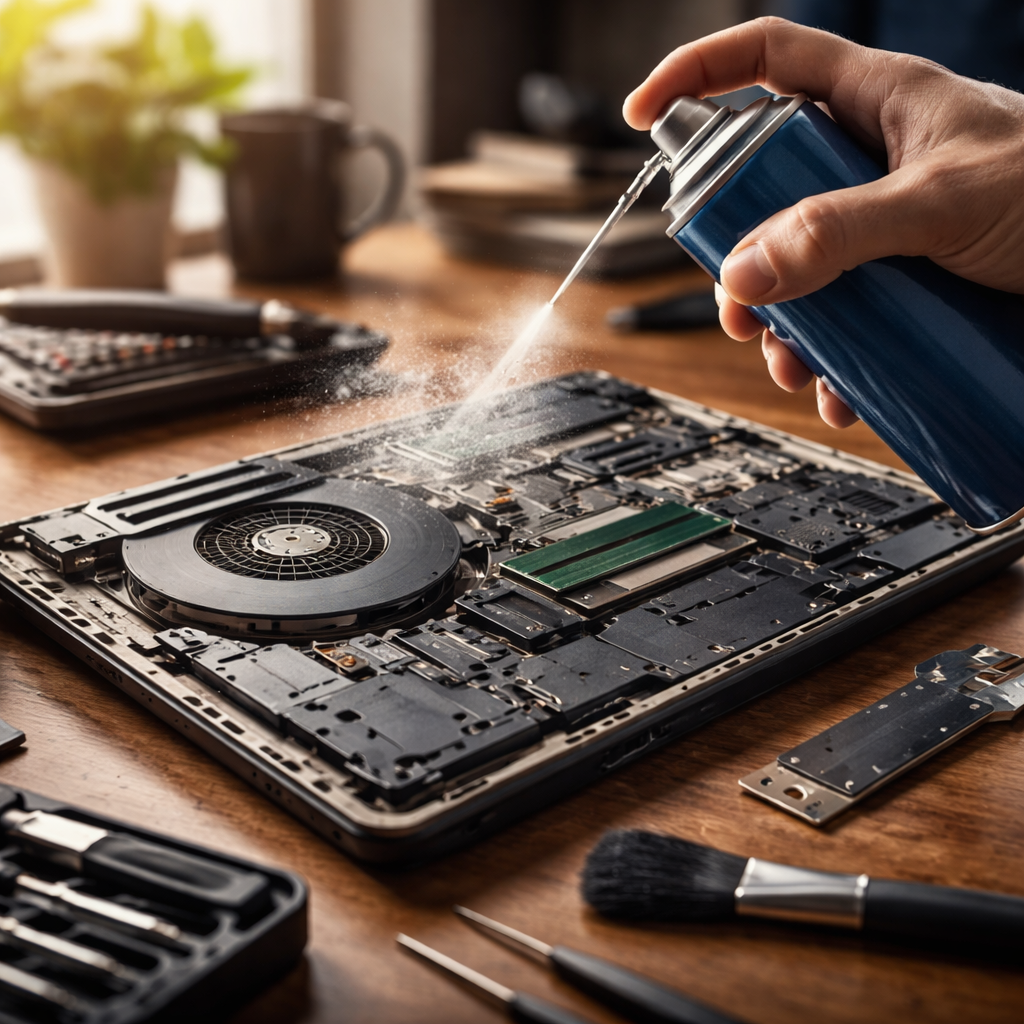
One of the most overlooked factors is thermal throttling. When a CPU overheats — often due to dust buildup inside the case — it automatically reduces its own speed to prevent damage. Your computer isn’t broken; it’s protecting itself. Cleaning the vents and fans can sometimes produce a more noticeable speed boost than any software tweak.
Start with startup: the quickest win
If your machine takes forever to become usable after booting, the startup program list is the first place to look. Over time, installed software quietly adds itself to the list of programs that launch with Windows or macOS — and each one chips away at your available memory before you’ve even opened a browser tab.
- On Windows: open Task Manager (Ctrl + Shift + Esc), go to the Startup tab, and disable anything you don’t need immediately at boot.
- On macOS: go to System Settings → General → Login Items and remove unnecessary entries.
- Pay special attention to cloud sync apps, update checkers, and communication tools — they’re the most frequent offenders.
Disabling a startup program doesn’t uninstall it. It simply stops it from launching automatically, so you can still open it manually whenever needed.
Storage and memory: two different problems, two different solutions
People often confuse RAM (memory) with storage, and the distinction matters when troubleshooting performance. RAM handles what your computer is doing right now — open tabs, running apps, active processes. Storage holds everything that persists when you turn the machine off.
| Issue | Symptom | Solution |
|---|---|---|
| Low RAM | Slowdowns when multitasking, freezing with multiple tabs open | Close unused apps, upgrade RAM if possible |
| Full or fragmented HDD | Slow file loading, long boot times | Free up disk space, run disk cleanup, consider SSD upgrade |
| Old HDD (mechanical) | Consistently slow read/write speeds | Replace with an SSD for a dramatic performance improvement |
| Background processes | High CPU or RAM usage at idle | Identify and close unnecessary background apps |
If your computer has a traditional hard disk drive rather than a solid-state drive, upgrading to an SSD is arguably the single most impactful hardware change you can make. Boot times, application loading, and general responsiveness all improve significantly — often making a five-year-old machine feel genuinely fast again.
Software habits that silently slow everything down
Beyond hardware, the way you use software has a direct effect on performance. Browser extensions are a perfect example — each one runs in the background and consumes memory. A browser with fifteen extensions installed will noticeably strain a machine with 4–8 GB of RAM.
A single poorly coded browser extension can consume as much memory as a full desktop application running in the background.
Similarly, keeping dozens of browser tabs open is functionally the same as running dozens of small programs simultaneously. Tab management tools or simply bookmarking pages you want to return to later can make a real difference in day-to-day responsiveness.
Malware and adware also deserve mention here. Unwanted software that installs itself alongside legitimate programs is a common cause of unexplained slowdowns. Running a reputable malware scanner — Malwarebytes offers a free version that works well for this — can identify and remove processes you didn’t know were running.
System maintenance steps worth doing regularly
Some performance issues don’t come from a single cause — they accumulate. Regular maintenance prevents the gradual degradation that makes computers feel slower and slower over time.
- Clear temporary files: Windows stores a large number of temp files that serve no ongoing purpose. Type %temp% in the Run dialog and delete everything inside that folder.
- Update your operating system and drivers: Outdated drivers, especially GPU drivers, can cause performance issues and instability. Keep them current.
- Check disk health: Tools like CrystalDiskInfo (Windows) or Disk Utility (macOS) can reveal if your storage drive is developing errors that affect speed and reliability.
- Defragment only if you have an HDD: Defragmentation helps mechanical drives but should never be run on SSDs — it reduces their lifespan without any benefit.
- Restart regularly: Leaving a computer in sleep mode for weeks without a full restart allows memory leaks and background processes to accumulate.
When it’s a software environment problem, not the hardware
Sometimes a computer that once ran fine becomes sluggish after a specific update or software installation. In these cases, the issue is environmental rather than hardware-related. A clean reinstall of the operating system — while time-consuming — resets everything to a baseline state and eliminates years of accumulated clutter, broken registry entries, and conflicting software.
This isn’t a first resort, but it’s worth knowing that a fresh OS install on the same hardware often produces results that feel like a new machine. Before going this route, always back up your data to an external drive or cloud storage.
A practical checklist before you give up on your computer
If you’re genuinely unsure where to start, working through this checklist in order covers the most common causes of slowdown without requiring technical expertise:
- Restart the computer (not sleep — a full shutdown and restart).
- Check how much free storage space remains — aim to keep at least 15% free.
- Open Task Manager or Activity Monitor and look for processes using unusual amounts of CPU or RAM.
- Reduce the number of startup programs.
- Run a malware scan.
- Clear browser cache and remove unused extensions.
- Update the operating system and major drivers.
- Physically clean the vents if the machine runs hot.
- If performance is still poor after all of the above, consider whether a RAM or SSD upgrade is feasible.
Working through this list systematically solves the problem in the vast majority of cases. The key is patience — and resisting the urge to assume the machine is beyond help before you’ve actually diagnosed what’s wrong.
