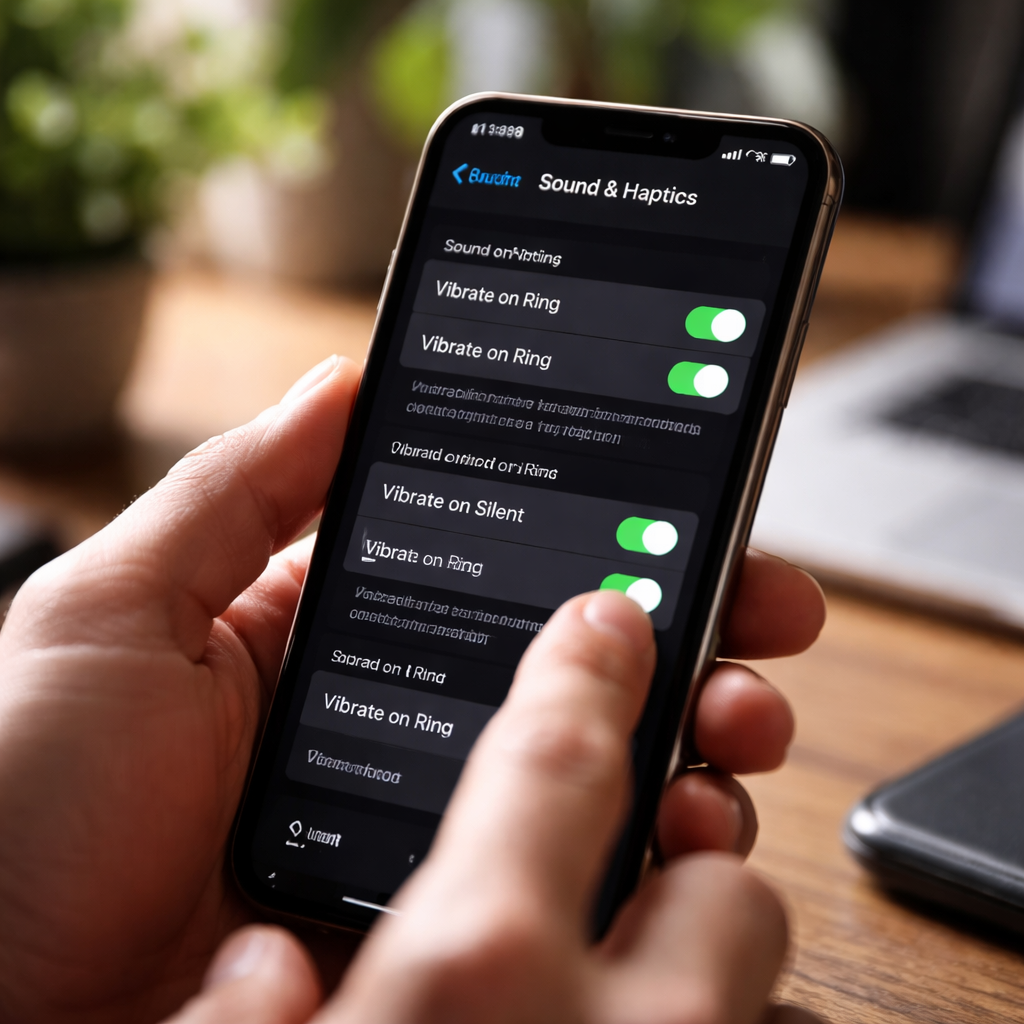
You tap the side button, check the settings, send yourself a test message — and still nothing. Phone vibrations not working is one of those quietly frustrating problems that can make you miss calls, alarms, and notifications without even realizing it. The good news is that in the vast majority of cases, the fix takes less than five minutes and requires no technical background whatsoever.
Why your phone stops vibrating in the first place
Before jumping into solutions, it helps to understand what’s actually happening. Your phone uses a small internal motor — sometimes called a haptic engine on newer devices — to generate vibrations. When something goes wrong, it can be a software glitch, a misconfigured setting, a drained battery affecting motor performance, or in rarer cases, physical damage to the component itself.
Software issues are by far the most common culprit. An update that changed your notification preferences, a third-party app that overrode your vibration settings, or simply a system process that got stuck — these are everyday occurrences on both Android and iOS devices. Hardware failure does happen, but it’s worth ruling out every software possibility first.
Start with the obvious checks
It sounds simple, but many people overlook the most straightforward causes. Before anything else, run through this quick checklist:
- Make sure your phone is not in Do Not Disturb mode — this silences both sound and vibration on most devices.
- On iPhones, check the physical Ring/Silent switch on the left side of the device. Even if it’s set to silent, vibration should still work — but only if it’s enabled separately in Settings.
- On Android, pull down the notification shade and confirm your sound profile isn’t set to a mode that disables vibration.
- Check your battery level. Some phones reduce haptic feedback intensity when the battery drops below a certain threshold to conserve energy.
Once you’ve confirmed none of these are the issue, it’s time to go a layer deeper.
Checking vibration settings on iOS and Android
The settings structure differs between platforms, so here’s what to look for on each:
| Platform | Where to check | What to look for |
|---|---|---|
| iOS | Settings → Sounds & Haptics | Vibrate on Ring and Vibrate on Silent toggles |
| iOS | Settings → Accessibility → Touch | Vibration toggle (must be enabled) |
| Android | Settings → Sound & Vibration | Vibration intensity sliders, haptic feedback toggles |
| Android | Settings → Accessibility | Vibration & haptic strength options |
On iOS, there’s a commonly missed setting: if you go to Settings → Accessibility → Touch and the Vibration toggle is switched off, your phone will not vibrate for anything — regardless of what all other settings say. This single switch overrides everything else, and it’s easy to accidentally disable.
When the issue is app-specific
Sometimes vibration works for calls and alarms but not for a specific app like WhatsApp, Instagram, or your email client. This usually means the app’s own notification settings are overriding your system preferences.
On Android, each app can individually control whether its notifications include sound, vibration, both, or neither. These settings live inside the app’s notification channel settings — not in the main sound menu.
To fix this on Android, go to Settings → Apps → select the app → Notifications, then find the specific notification category (like Messages or Alerts) and make sure vibration is enabled for that channel. On iOS, go to Settings → Notifications → select the app, and verify that sounds and haptics are turned on.
Restart, reset, repeat
If your settings all look correct but the haptic feedback is still not working, a simple restart resolves the problem more often than you’d expect. System processes occasionally get into a confused state, particularly after an OS update or after installing new apps, and a full reboot clears this out cleanly.
If a restart doesn’t help, the next step is to check whether a recent update caused the issue. Look at your update history and consider whether the problem started around the same time as a system or app update. If so, waiting for a follow-up patch is often the most practical solution — but you can also try resetting all settings (not a factory reset, just settings) which on both iOS and Android will restore defaults without deleting your data.
When it might actually be hardware
If you’ve gone through every software fix and vibration still doesn’t work on any app, call, or system alert, there’s a realistic chance the haptic motor has been damaged. This can happen from a drop, water exposure, or simply wear over time on older devices.
Signs that point toward a hardware problem rather than a software one:
- Vibration stopped completely and suddenly after the phone was dropped.
- The phone got wet shortly before the issue appeared.
- No vibration at all, even in diagnostics or in the settings slider test described above.
- The phone is several years old and has been used heavily.
In this case, visiting an authorized service center or a reputable repair shop is the right move. Haptic motors can be replaced, and the process is relatively affordable on most popular phone models.
Getting your phone to work for you again
Most vibration issues have a software explanation, and most software explanations have a straightforward fix. Working through the steps systematically — starting from basic toggles, moving through app-level notification settings, then trying a restart and settings reset — solves the problem for the overwhelming majority of users without any special tools or expertise.
The key is not to assume hardware failure right away. Phone settings have become genuinely complex, with multiple layers of controls that can contradict each other. Taking ten minutes to trace the issue methodically is almost always worth it before spending money on a repair. And if it does turn out to be the motor, at least you’ll know you’ve ruled out everything else first.
