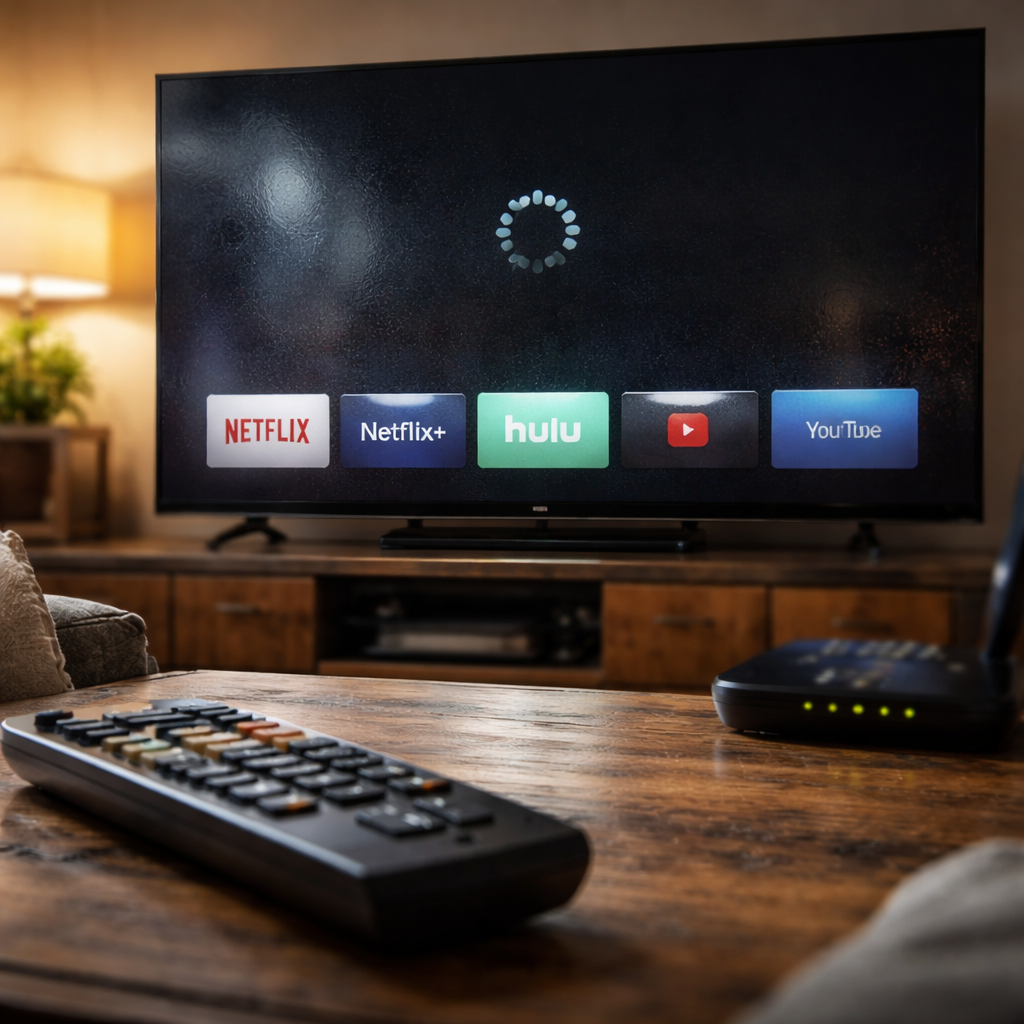
Picture this: you settle in for movie night, open your favorite streaming app, and nothing loads. Smart TV apps not working is one of the most frustrating tech experiences in everyday home life — and it happens to virtually everyone at some point, regardless of brand or model.
The good news is that most of these issues have straightforward fixes. The trick is knowing where to look first and understanding what’s actually causing the problem under the hood.
Why apps stop working on Smart TVs in the first place
Smart TVs run on operating systems — whether that’s Tizen on Samsung, webOS on LG, Android TV, or Roku OS — and like any software-based device, they accumulate cached data, encounter firmware bugs, and sometimes struggle to keep pace with app updates. The apps themselves are maintained by third-party developers, meaning a change on Netflix’s server or Disney+’s backend can knock the app offline on your TV even when your internet is perfectly fine.
There are several distinct categories of failure worth understanding before you start troubleshooting:
- The app crashes immediately after opening
- The app loads but shows a black screen or endless buffering
- The app refuses to update or install
- Certain apps work fine while others don’t
- All apps fail simultaneously
Each pattern points to a different root cause. Knowing which one you’re dealing with saves a lot of time.
Start with the basics before going deeper
A surprising number of app failures on Smart TVs are resolved by two things: restarting the TV properly and checking the internet connection. These sound almost too simple, but they address the most common causes.
A proper restart means unplugging the TV from the power outlet for at least 30 seconds — not just pressing the remote’s power button. This clears the device’s RAM and resets temporary processes that can interfere with app performance.
For internet connectivity, run a speed test directly on your TV if the option is available in the network settings. Streaming apps typically require a stable connection of at least 5 Mbps for HD content. If your TV is connected via Wi-Fi, try moving closer to the router or switching to a 5 GHz band instead of 2.4 GHz, which tends to be more congested.
Clearing cache and app data — the underused fix
On Android TV and Google TV devices, you can clear individual app caches directly from the settings menu. This removes corrupted temporary files that often cause apps to freeze or crash. On other platforms like Tizen or webOS, this option isn’t always available per app, but you can still reset the Smart Hub or reinstall the application entirely.
| TV Platform | How to Clear App Data |
|---|---|
| Android TV / Google TV | Settings → Apps → Select App → Clear Cache / Clear Data |
| Samsung (Tizen) | Settings → Support → Device Care → Manage Storage |
| LG (webOS) | Uninstall and reinstall the app via LG Content Store |
| Roku | Remove channel and re-add it from the Channel Store |
Reinstalling an app not only clears its data but also ensures you have the most current version installed — which alone resolves compatibility issues in a large share of cases.
Firmware updates matter more than most people think
Running outdated TV firmware is one of the less obvious causes of app dysfunction. Manufacturers regularly release system updates that patch security vulnerabilities, improve app compatibility, and fix platform-level bugs. If your TV’s operating system is several versions behind, newer app builds may simply refuse to run correctly.
Check for updates by going to your TV’s settings menu, typically under “About” or “System.” If an update is available, install it and allow the TV to restart. In many cases, this single step eliminates persistent app problems that seemed unrelated to software versioning.
When only one app fails — and what it actually means
If Netflix works but Hulu doesn’t, or YouTube loads while Prime Video stays broken, the problem is almost certainly app-specific rather than a system or network issue. This can mean a few different things:
- The app developer pushed a faulty update
- The app’s servers are experiencing an outage
- Your account credentials have expired or need re-authentication
- The app version on your TV is no longer supported
A quick way to verify if an outage is the culprit is to check a site like Downdetector, where users report service disruptions in real time. If there’s a known outage, there’s genuinely nothing to fix on your end — the app will come back once the provider resolves it.
For unsupported app versions, the painful reality is that older Smart TVs sometimes get dropped from developer support. In that scenario, the app won’t function properly regardless of what you do at the TV level. Connecting an external streaming device — like a Chromecast, Fire TV Stick, or Apple TV — is the most practical workaround here.
Factory reset as a last resort — and what to expect
A factory reset returns the TV to its original out-of-box state, removing all installed apps, login credentials, and custom settings. It’s worth doing only after other methods have failed, because it takes time to set everything back up.
Before going this route, make a note of the apps you use and any settings worth keeping. After the reset, update the firmware immediately before reinstalling anything — this ensures the app environment is built on a stable foundation from the start.
Most users who perform a factory reset report that it resolves even long-standing app performance issues that nothing else fixed, particularly on older devices where years of accumulated data had quietly degraded system performance.
Keep your Smart TV running the way it should
App issues on Smart TVs are rarely a sign of hardware failure — they’re almost always software, network, or compatibility problems, all of which are fixable. Working through the steps methodically — restarting, checking connectivity, clearing cache, updating firmware, and reinstalling problematic apps — resolves the vast majority of cases without any need for technical expertise or a service call.
The best long-term approach is simply keeping the TV’s system software up to date and periodically clearing app data for the streaming services you use most. Small habits like these prevent most problems from developing in the first place, and when something does go wrong, you’ll know exactly where to start.
