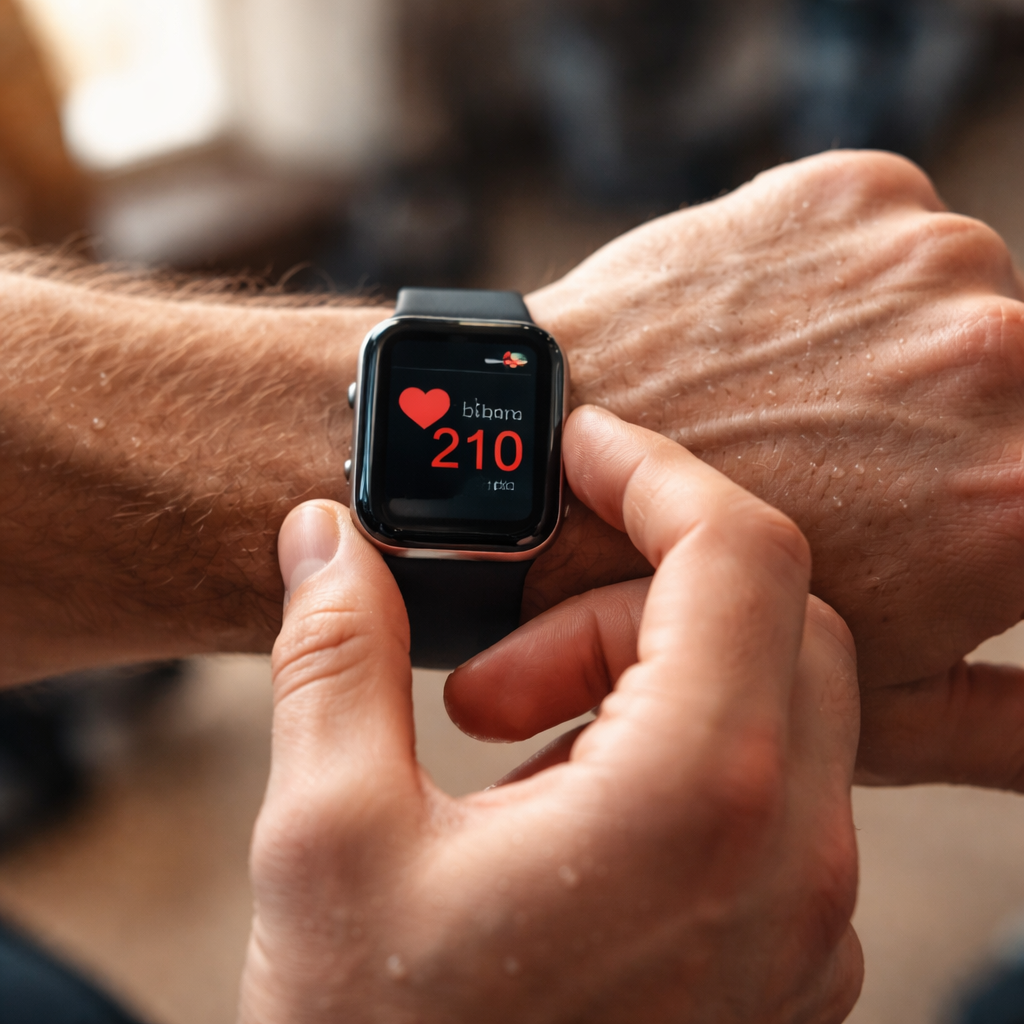
You glance at your wrist mid-workout, and the heart rate monitor on your smart watch is spinning, frozen, or showing a number that makes no sense — 35 bpm while running, or 210 bpm while sitting still. If your smart watch heart rate monitor not working is the reason you landed here, you’re dealing with one of the most frustrating wearable tech issues out there, and the good news is that most causes are fixable without a trip to a repair shop.
Why the sensor loses its accuracy in the first place
The optical heart rate sensor in most smartwatches works by shining green LED light into your skin and measuring how much light bounces back — a method called photoplethysmography (PPG). It sounds complex, but the principle is straightforward: blood absorbs more light when the heart pumps, so the sensor tracks those tiny pulses of absorption to calculate beats per minute.
The problem is that this technology is highly sensitive to external conditions. Skin tone, body hair, cold temperatures, movement, and even the fit of the band all affect how accurately the sensor picks up the signal. That’s why the same watch can work perfectly for one person and give wildly inaccurate readings for another.
The most common culprits behind a non-working heart rate monitor
Before diving into fixes, it helps to understand what’s actually going wrong. In most cases, the issue falls into one of these categories:
- Dirty or obstructed sensor — oils, sweat, and dead skin cells accumulate on the optical lens over time
- Incorrect wearing position — the watch is sitting too high on the wrist or too loose
- Software glitch — the heart rate app or the firmware has encountered an error
- Low battery — some watches disable continuous heart rate monitoring when battery drops below a certain threshold
- Skin temperature — cold weather constricts blood vessels near the surface, making the signal weaker
- Excessive wrist movement — motion artifacts confuse the sensor during high-intensity activities
The majority of heart rate monitoring failures are environmental, not hardware-related. Cleaning the sensor and repositioning the watch resolves the issue in a significant number of cases.
Step-by-step troubleshooting that actually works
Rather than jumping straight to a factory reset, work through these steps in order. Each one is quick, and you’ll often find the solution before reaching the more advanced options.
Clean the sensor properly
Flip your watch over and look at the back. You’ll see the green LEDs and a flat sensor window. Use a soft, slightly damp cloth — nothing abrasive — and gently wipe the entire sensor area. If you’ve been wearing the watch during workouts, dried sweat residue can form a thin film over the lens that’s invisible but highly disruptive to the optical reading. After cleaning, dry the sensor completely before putting the watch back on.
Adjust the fit and placement on your wrist
Most manufacturers recommend wearing the watch one to two finger-widths above the wrist bone, not directly on it. The band should be snug enough that you can’t easily slide a finger underneath it, but not so tight that it cuts off circulation. During high-intensity exercise, moving the watch slightly higher up the forearm can improve sensor contact and reduce motion artifacts.
Restart the watch and the companion app
A soft restart clears temporary memory and often resolves sensor freezes or reading loops. Hold the side button until the power menu appears, restart the device, and once it’s back on, close and reopen the companion app on your phone. For Garmin, Apple Watch, Fitbit, Samsung Galaxy Watch, and most other brands, this takes under two minutes and fixes the issue more often than you’d expect.
Check heart rate settings in the app
Some watches allow users to turn off continuous heart rate monitoring to save battery life. If this setting was toggled off — either manually or automatically — the sensor will not actively measure your pulse. Open your companion app, navigate to health or sensor settings, and verify that heart rate monitoring is enabled and set to the frequency you want.
| Brand | Where to check heart rate settings | Common issue |
|---|---|---|
| Apple Watch | Watch app → Privacy → Health → Heart Rate | Background heart rate disabled |
| Fitbit | Fitbit app → Today → Heart Rate | All-Day Sync turned off |
| Samsung Galaxy Watch | Galaxy Wearable app → Watch Settings → Advanced | Continuous monitoring set to manual |
| Garmin | Garmin Connect app → Device Settings → Wrist Heart Rate | Sensor switched to broadcast-only mode |
Update the firmware
Manufacturers regularly release firmware updates that address sensor calibration bugs. If your watch hasn’t been updated in a while, an outdated version might be causing inaccurate readings or preventing the sensor from activating at all. Connect your watch to its charger, open the companion app, and check for available updates under the device settings section.
When the problem goes deeper than software
If you’ve worked through every step above and the sensor still isn’t responding or is giving readings that are clearly wrong, the issue may be hardware-related. Physical damage to the sensor from a hard impact, water damage beyond the watch’s rated resistance, or a hardware defect can cause permanent sensor failure.
Before assuming the worst, try one more thing: perform a factory reset. This wipes all user data and returns the watch to its original state. It’s a more drastic step, but it rules out any deeply embedded software corruption. If the sensor still doesn’t work after a factory reset, contact the manufacturer’s support team. Most reputable brands — Apple, Garmin, Fitbit, Samsung — have diagnostic tools and warranty replacement options for confirmed sensor failures.
Getting more reliable readings going forward
Once you’ve resolved the issue, a few habits will help you avoid running into it again. Clean the sensor area every few days, especially if you exercise regularly. Let your skin warm up before checking your resting heart rate in cold conditions. And if you’re doing interval training or weightlifting, consider pairing your smartwatch with a chest strap heart rate monitor for the most accurate data — optical wrist sensors still struggle with certain movement patterns during high-intensity bursts.
Also worth knowing: skin with higher melanin levels can affect optical sensor readings on some older watch models. Newer generations have largely addressed this with multi-wavelength sensors that use both green and red LEDs, but if you have an older device and notice consistent inaccuracies, this could be a contributing factor worth discussing with the manufacturer.
A smartwatch heart rate monitor is a genuinely useful health tool — not just for workouts, but for tracking resting heart rate trends, detecting irregular rhythms, and monitoring recovery. Getting it to work reliably is worth the effort, and in most cases, the fix is simpler than it first appears.
