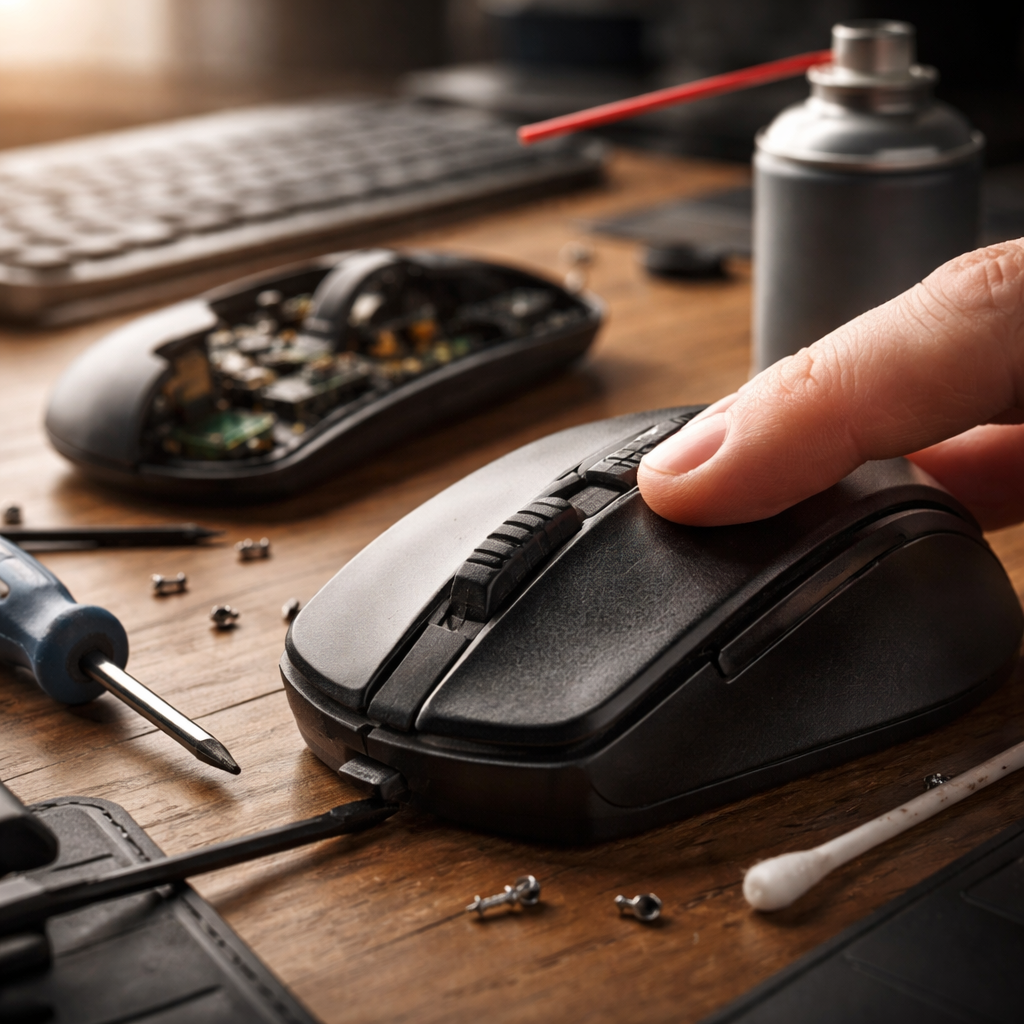
You click once — and the computer registers two. It opens files, selects text, triggers actions you never intended. If you’re trying to figure out how to fix a mouse that keeps double-clicking, you’re dealing with one of the most quietly frustrating hardware issues out there — and the good news is that most cases are completely fixable without buying a new device.
What actually causes the double-click problem
Before jumping into solutions, it helps to understand what’s going wrong. The double-click issue almost always comes down to one of three things: a worn-out micro switch inside the mouse button, incorrect software settings, or debris interfering with the click mechanism.
The micro switch — a tiny component beneath each mouse button — has a physical lifespan measured in click cycles. Budget mice often use switches rated for around 3–5 million clicks, while premium models can handle 20 million or more. Once the spring inside the switch begins to fatigue, it can register a bounce on release, which your computer interprets as a second click. This is the most common root cause, especially on mice that have seen a lot of use.
Software-side causes are less dramatic but equally annoying. Windows and macOS both have double-click speed settings, and if that threshold is set too low, even a slightly slow single click gets interpreted as a double-click. It’s worth ruling this out before taking anything apart.
Start with the software — it takes two minutes
Open your system’s mouse settings and look for the double-click speed slider. On Windows, go to Control Panel → Mouse → Buttons tab. On macOS, navigate to System Settings → Mouse → Double-Click Speed. Move the slider slightly toward the slower end and test the behavior. If the phantom double-clicks disappear, you’ve solved the problem without touching a screwdriver.
Also check whether any mouse software is installed — gaming peripherals often come with companion apps that have their own click settings. These can override system defaults and cause unexpected behavior, so it’s worth reviewing them too.
A quick software check costs nothing. Skipping it and going straight to disassembly is how people accidentally void warranties they forgot they had.
Cleaning the switch — more effective than it sounds
If the settings are fine, the next step is physical cleaning. Dust, crumbs, and oxidation on the micro switch contacts can disrupt the electrical connection and cause erratic click behavior. You don’t necessarily need to open the mouse for this — compressed air blown into the gaps around the buttons can dislodge loose debris.
For a deeper clean, a small amount of contact cleaner spray (designed for electronics) applied carefully into the switch mechanism can dissolve oxidation. Let it dry completely before testing. Many users report that this step alone resolves the issue on older mice.
| Method | Difficulty | Tools needed | Effectiveness |
|---|---|---|---|
| Adjust double-click speed | Easy | None | High (if software-related) |
| Compressed air cleaning | Easy | Compressed air can | Moderate |
| Contact cleaner spray | Moderate | Electronics cleaner | High (for oxidation) |
| Switch replacement | Advanced | Screwdriver, soldering iron | Very high |
Opening the mouse and replacing the micro switch
This is the most reliable long-term fix for hardware-related double-clicking. It requires some comfort with small electronics, but it’s not as intimidating as it sounds.
Here’s a general approach that applies to most wired and wireless mice:
- Remove any visible screws from the bottom of the mouse — some are hidden under rubber feet or stickers, so check carefully before forcing anything open.
- Gently separate the shell halves using a plastic spudger or a thin, non-metallic tool to avoid scratching.
- Locate the micro switch under the faulty button — it’s a small rectangular component, usually made by Omron, Huano, or Kailh.
- Note the switch model number printed on it — this is what you’ll need to order a replacement.
- Desolder the old switch using a soldering iron and solder wick or a desoldering pump, then solder the new one in place.
- Reassemble, test, and enjoy a mouse that clicks like it’s brand new.
Replacement micro switches cost very little and are widely available from electronics suppliers. The most common upgrades people choose are Omron D2FC-F-7N or Kailh GM switches, both of which are known for consistent actuation and long service life.
Not comfortable soldering? There’s still an option
If soldering isn’t something you want to attempt, some mice can be fixed using a small piece of electrical tape or a thin shim placed on top of the switch spring to increase tension. This is a temporary workaround, but it genuinely works for some users and can extend the mouse’s usable life by months.
Another option is to remap the problematic button using software. Tools like X-Mouse Button Control on Windows let you reassign functions to different buttons. If your left button double-clicks but your right button is fine, you can temporarily swap their functions while you wait for replacement parts to arrive.
When to check for warranty coverage first
Before doing anything physical to the mouse, check whether it’s still under warranty. Many reputable brands — Logitech, Razer, SteelSeries — offer one to three years of coverage, and double-clicking is widely recognized as a manufacturing defect for certain models. Logitech in particular has replaced many units from specific product lines due to known switch issues.
Opening the device yourself almost always voids the warranty, so if there’s any chance your mouse is still covered, contact support first. The repair cost is zero and you’ll likely get a fresh unit with a new switch already installed.
Practical tips worth keeping in mind
- Test the mouse on another computer before any repair — this confirms the issue is with the mouse itself, not a driver conflict on your machine.
- Use your operating system’s event viewer or a click testing tool to see exactly how many clicks are being registered per press — this helps confirm the problem is real and consistent.
- Keep the mouse clean regularly; a small amount of preventive maintenance goes a long way in extending switch life.
- If you’re buying a new mouse, prioritize models with switches rated for higher click cycles — it’s listed in the specifications for most gaming mice.
The click that finally holds
A mouse that double-clicks on its own is frustrating precisely because it interrupts workflow in small but constant ways. The fix is almost always within reach — whether it’s a slider adjustment that takes thirty seconds, a can of compressed air, or a five-dollar switch replacement that breathes new life into an otherwise perfectly good peripheral. Most people throw away hardware that could have been saved with a basic repair, and that’s genuinely worth avoiding. Start simple, work your way through the steps, and chances are very good that your mouse will be clicking cleanly again before the day is out.
